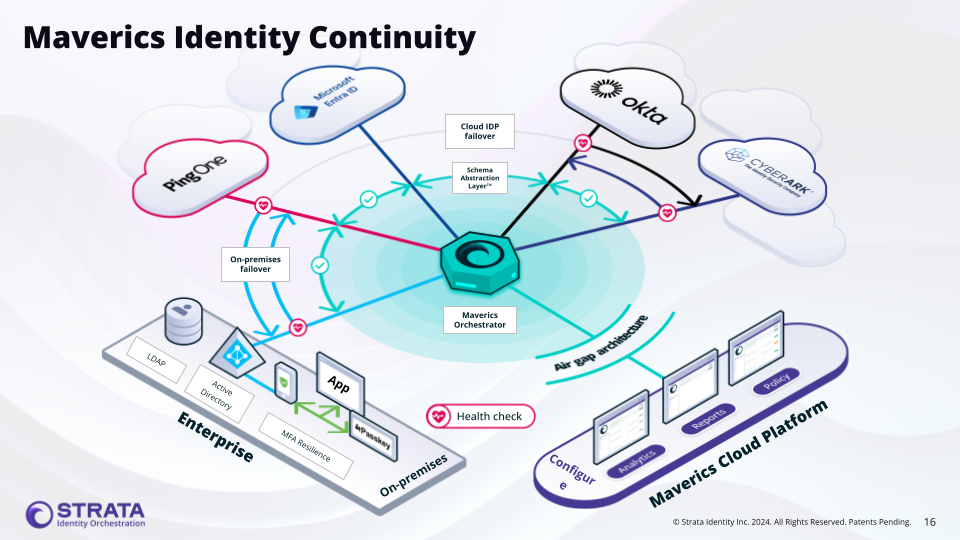
Identity Continuity ensures uninterrupted authentication by automatically routing users to a healthy identity provider when the primary becomes unavailable. Whether your cloud IdP has a regional failure, a network partition isolates your on-premises directory, or a provider pushes a breaking change, the Maverics Orchestrator detects the problem and switches traffic transparently — no user action required.These guides cover configuring Identity Continuity from initial setup through advanced multi-tier high availability architectures.
Configure automatic IdP failover with health monitoring, Schema Abstraction Layer, and simulation testing
Reducing Single Points of Failure
Layer Identity Continuity configurations across deployment tiers to eliminate IdP single points of failure
By the end of this guide, you will have a Maverics deployment that automatically fails over between identity providers when one becomes unavailable — keeping your users authenticated without any service interruption.
Console terminology: In the Maverics Console, Continuity is configured as a
Continuity Strategy under Identity Fabric. In YAML, this maps to a connector
with type: continuity.
Unplanned identity provider outages can lock out every user in the organization. Whether your cloud IdP has a regional failure, a network partition isolates your on-premises directory, or a provider pushes a breaking change — the result is the same: nobody can log in.Identity Continuity is a high availability prevention system, not a backup or recovery tool. It does not restore service after an outage — it reduces the risk of an outage affecting users. The Orchestrator continuously monitors each identity provider’s health and reroutes traffic to a healthy alternative before users ever see a login failure.Two primary use cases drive most Continuity deployments:
Cloud IdP fails over to on-premises directory — Your primary cloud IdP (e.g., Okta, Entra ID) becomes unavailable, and the Orchestrator routes authentication to an on-premises LDAP or AD connector.
Cloud IdP fails over to another cloud IdP — Your primary cloud IdP becomes unavailable, and the Orchestrator routes to a secondary cloud provider.
Identity Continuity keeps authentication working when a provider goes down. If you need to permanently migrate users from one identity provider to another, see the IdP Migration guide instead.
At least two identity provider connectors configured — You need a primary and one or more backup identity providers. See the Identity Fabric reference for supported providers and connector setup.
User identities synced across identity providers — Your identity providers must already have the same user accounts provisioned. Failover to a backup IdP will fail if that IdP does not have the user’s account. Typically this is handled by an Identity Governance and Administration (IGA) product or directory synchronization tool that keeps your identity stores in sync.
A deployment configured — Your Orchestrator needs an active deployment with a configured storage provider. See the Publishing Deployment Configs overview for setup details.
You need at least two identity services — a primary that handles authentication under normal conditions and one or more backups that take over when the primary is unavailable. Each provider gets its own Identity Fabric connector with independent credentials and configuration.
Console UI
Configuration
Navigate to Identity Fabric in the sidebar and click Create.
Select your primary provider type from the list (e.g., Okta (OIDC), Microsoft Entra ID (OIDC), or Generic OIDC Configuration).
Fill in the connector form with your primary IdP’s credentials — client ID, client secret, and discovery URL.
Click Save.
Repeat steps 1-4 for each backup identity provider.
Name your connectors clearly (e.g., primary-okta and backup-entra-id) to make the failover order obvious when configuring the Continuity Strategy.
Define both connectors in the connectors section. Each connector has its own credentials and discovery endpoint.
Name your connectors descriptively (e.g., primary-okta and backup-entra-id) so the failover order is clear when configuring the Continuity connector.
The Orchestrator can maintain active connections to both providers simultaneously. Users authenticating against either provider will have a seamless experience.
2
Enable health monitoring on each identity service
Health monitoring must be enabled on each individual IdP connector, not on the Continuity connector itself. The Orchestrator polls each IdP’s health endpoint at a configurable interval and uses the results to decide when to trigger failover.
Console UI
Configuration
Open each identity service you configured in the previous step.
Scroll to Identity Service Health Monitoring and enable it.
Configure the health check settings:
Setting
Recommended (Testing)
Recommended (Production)
Description
Polling frequency
10s
30s-60s
How often the Orchestrator checks the IdP’s health
Timeout
10s
10s
How long to wait for a health check response before marking it as failed
Failover threshold
3
3
Number of consecutive failures before triggering failover
Fallback threshold
3
3
Number of consecutive successes before routing traffic back
Optionally enable Custom Health Check for more granular control over what constitutes a healthy response.
Click Save.
Repeat for each identity service in your Continuity configuration.
Add a healthCheck block to each connector that participates in the Continuity Strategy.
Repeat the healthCheck configuration for each connector in the failover list.
For OIDC-based identity services, health checks automatically call the well-known endpoint and authorization server. For LDAP/AD services, health checks attempt a connection and bind.
3
Create a Continuity Strategy
The Continuity Strategy is the component that orchestrates failover between your identity providers. It wraps your IdP connectors and adds routing logic based on health status.
Console UI
Configuration
Navigate to Identity Fabric in the sidebar and click Create.
Select Continuity Strategy from the list.
Enter a name for the strategy (e.g., ha-failover).
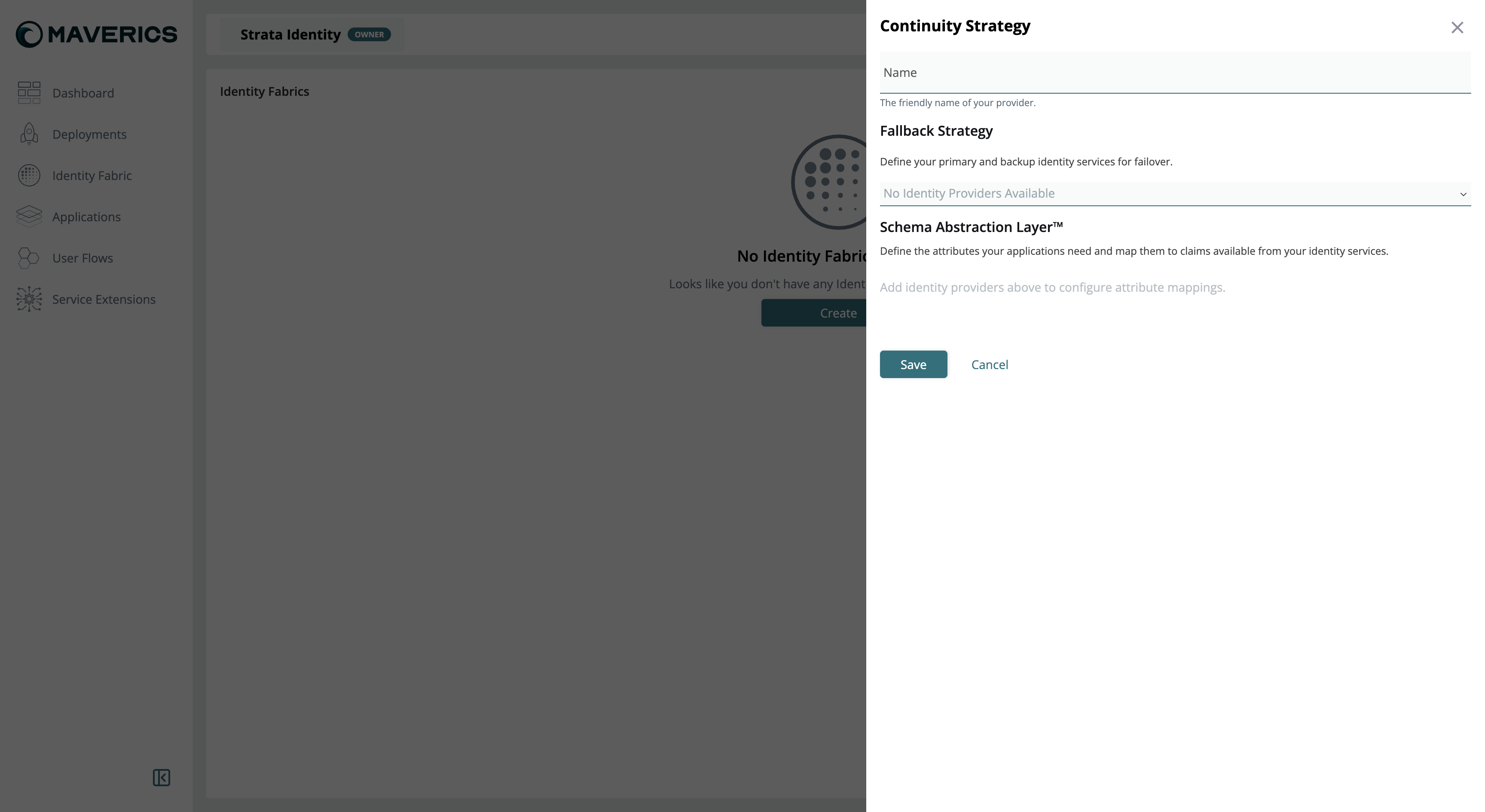
In the Fallback Strategy section, add your identity providers in priority order — primary first, then backups. The dropdown lists only identity services you have already configured.
Creating a Continuity Strategy in the Maverics Console
Add a connector with type: continuity that references your IdP connectors in the failover.idps array. The first entry is the primary; subsequent entries are fallbacks tried in order.
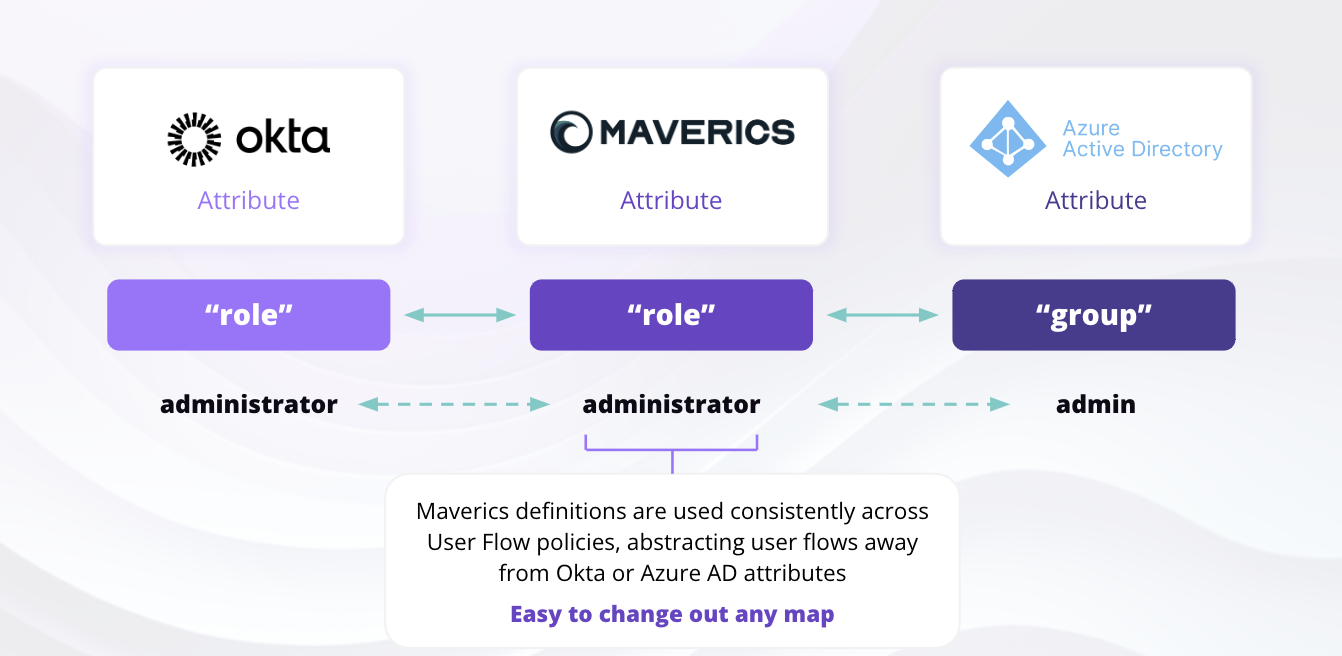
The Schema Abstraction Layer maps attributes from different IdPs to consistent names. When failover occurs, your applications receive the same attribute names regardless of which IdP authenticated the user.For example, one IdP might call the email attribute preferred_username while another calls it mail. The Schema Abstraction Layer normalizes both to a single attribute name (e.g., email) that your applications can rely on.
How the Schema Abstraction Layer normalizes attributes across providers
Console UI
Configuration
In the Continuity Strategy configuration, scroll to the Schema Abstraction Layer section.
For each attribute your applications need (e.g., email, name, role), click to add a row.
Enter the normalized attribute Name (what your applications will see).
Map it to the corresponding claim name from each identity service.
Optionally set a Default value for cases where the attribute is unavailable from any IdP.
Click Save.
Schema Abstraction Layer attribute mapping
Add an attributes section to the Continuity connector. Each entry maps a normalized name to the corresponding attribute name from each IdP.
Update your application configuration to use the Continuity Strategy as its authentication provider instead of a specific IdP connector. This is the same binding pattern used in other authentication guides — the only difference is that you reference the Continuity Strategy instead of an individual IdP.
Console UI
Configuration
Open your application’s settings.
In the Resources card, click Edit, click Add Resource, and add your Continuity Strategy. A resource must be added before it can be selected as an authentication source.
In the Access Control card, select the Continuity Strategy from the Select an authentication source dropdown.
For headers or claims, update the source to the Continuity Strategy and select attributes from the Schema Abstraction Layer.
Click Publish Preview to review changes, then click Publish to deploy.
For all application types, the Continuity Strategy is selected from the Select an authentication source dropdown on the Access Control card. For proxy applications, add it within an access control policy.
Update the authentication.idps array in your application definition to reference the Continuity connector. Use the Schema Abstraction Layer attribute names in claimsMapping.
The claimsMapping references the Continuity connector’s normalized attribute names — not the individual IdP connectors. This ensures your application receives consistent claims regardless of which IdP authenticated the user.
The Orchestrator handles protocol translation automatically. Your application does not need to support the same protocol as your identity providers. For example, an OIDC application can authenticate users through a SAML or LDAP identity provider — the Orchestrator translates between protocols transparently.
6
Test your Continuity Strategy
The Maverics Console includes a simulation feature that lets you test failover behavior without waiting for a real outage. When publishing changes, you can enable simulation to cycle through test phases automatically.
Console UI
Configuration
When publishing your configuration, toggle Simulate Continuity Strategy.
Set a time interval for the simulation cycle (e.g., 60 seconds per phase).
Click Publish to deploy with simulation enabled.
The simulation cycles through test phases automatically. During each phase, open an incognito/private browser window, navigate to your application URL, and verify the correct IdP login page appears.
Simulation mode is only available through the Console UI publish flow. When using direct configuration, you can test failover manually by stopping the primary IdP’s service or blocking its health check endpoint, then verifying that authentication routes to the backup IdP.
Simulation test phases showing the failover and fallback cycle
The simulation runs through these phases:
Test primary — Authenticate using your primary IdP credentials. Verify login works normally.
Test failover to secondary — The primary appears unavailable. Open an incognito window, go to your app URL, and verify the login redirects to your secondary (backup) IdP.
Test tertiary (if configured) — The secondary also appears unavailable. Verify failover to the third IdP.
Test fallback — The secondary comes back online. Verify traffic routes back to the secondary.
Test fallback to primary — The primary comes back online. Verify traffic routes back to the primary.
For each phase, use a fresh incognito window to avoid cached sessions interfering with the test.
Your Maverics Orchestrator is automatically routing authentication between your identity providers based on health status.
Check the Orchestrator’s debug logs for health check messages. Look for log entries like:
level=debug msg="idp health check failed: well-known metadata unavailable"
Common causes:
The well-known endpoint or LDAP server is not reachable from the Orchestrator’s network.
The unhealthyThreshold has not been reached yet — the Orchestrator requires the configured number of consecutive failures before triggering failover.
Health monitoring is not enabled on the individual IdP connectors (health checks are configured on each connector, not on the Continuity connector itself).
Attributes are missing after failover
Verify the Schema Abstraction Layer mappings cover all attributes your application needs. Each IdP may use different claim names for the same data (e.g., email vs mail vs preferred_username).Check that attributes[].mapping entries exist for every IdP listed in the failover.idps array. If a mapping is missing for an IdP, the attribute will be empty when that IdP handles authentication.
Simulation mode is not working
Simulation mode is only available through the Console UI publish flow. Verify that you:
Toggled the Simulate Continuity Strategy switch before publishing.
Set a time interval for the simulation cycle.
Published the configuration after enabling simulation.
Check the Orchestrator logs for simulation-related messages. If you are using direct configuration (YAML), simulation mode is not available — test failover manually by making the primary IdP’s health check endpoint unreachable.
Fallback is not happening after IdP recovers
Verify that healthyThreshold is configured on the individual IdP connectors. The Orchestrator requires the configured number of consecutive healthy checks before routing traffic back to a recovered IdP.Also check:
The health check interval — enough time must pass for the required number of healthy checks to accumulate.
The recovered IdP’s health check endpoint is actually responding successfully.
The Orchestrator logs show health check success messages for the recovered IdP.
Complete configuration reference for the Continuity connector — failover, routing, and attribute normalization settings
IdP Migration
Migrate between identity providers with zero downtime using the same Continuity connector
Identity Fabric Reference
Supported identity providers and connector configuration for Microsoft Entra ID, Okta, Auth0, and more
Sessions Reference
Session management, invalidation, and storage options for the Orchestrator
{"docsConfig":{"theme":"mint","$schema":"https://mintlify.com/docs.json","name":"Maverics Documentation","colors":{"primary":"#1DA1DC","light":"#2FCAFF","dark":"#0086C0"},"logo":{"light":"https://mintcdn.com/strataidentity/GnMIwAgmQ7Rnxm8R/logo/light.svg?fit=max\u0026auto=format\u0026n=GnMIwAgmQ7Rnxm8R\u0026q=85\u0026s=f75039b8474c2403c381ef74fdbee428","dark":"https://mintcdn.com/strataidentity/GnMIwAgmQ7Rnxm8R/logo/dark.svg?fit=max\u0026auto=format\u0026n=GnMIwAgmQ7Rnxm8R\u0026q=85\u0026s=c18e3db0543ce5426f86c06a48cfceba","href":"https://www.strata.io"},"favicon":"https://mintcdn.com/strataidentity/bx_Hbkhp9SuRuU18/favicon.svg?fit=max\u0026auto=format\u0026n=bx_Hbkhp9SuRuU18\u0026q=85\u0026s=7a515a8aae3869956b801d7d0a8a555c","appearance":{"default":"dark","strict":false},"navbar":{"links":[{"href":"https://strataidentity.my.site.com/support/s/","label":"Support"}],"primary":{"type":"button","label":"Console Login","href":"https://maverics.strata.io"}},"footer":{"socials":{"linkedin":"https://www.linkedin.com/company/strata-identity","github":"https://github.com/strata-io","x":"https://x.com/strataidentity","youtube":"https://www.youtube.com/@strataidentity"},"links":[{"header":"Resources","items":[{"label":"Legacy Docs","href":"https://legacy-docs.strata.io"}]},{"header":"Help","items":[{"label":"Status","href":"https://status.strata.io/"},{"label":"Support Center","href":"https://strataidentity.my.site.com/support/s"}]},{"header":"Terms and Policy","items":[{"label":"Privacy Policy","href":"https://www.strata.io/privacy-policy"},{"label":"Trust Center","href":"https://security-trust.strata.io/"},{"label":"Cookie Declaration","href":"https://www.strata.io/legal/cookiebot-declaration"}]}]},"integrations":{"cookies":{"key":"cookieconsent_analytics_allowed","value":"true"}},"errors":{"404":{"redirect":false,"title":"Page not found","description":"Looks like this page has moved or doesn't exist yet. Try searching the docs or head back to the [homepage](/introduction/overview). If you're looking for older content, it might still be on the [legacy documentation site](https://legacy-docs.strata.io)."}},"contextual":{"options":["copy","view","chatgpt","claude","perplexity","mcp","cursor","vscode"],"display":"header"},"styling":{"latex":false},"navigation":{"pages":[]}},"deployment":{"deploymentMetadataValue":{"subdomain":"strataidentity","hasAudioNarration":false,"actualSubdomain":"strataidentity","customDomains":["docs.strata.io"],"gitSource":{"type":"github","owner":"strata-io","repo":"docs.strata.io","deployBranch":"main","contentDirectory":"","isPrivate":true,"mountPath":"","label":""},"chroma":{"liveDeploymentHistoryId":"6ada546cc44ddc1d90a40b06","collectionId":"2da6b9a8-b836-4793-9fe4-2650715d6a62","schemaVersion":"v3","latestBuiltDeploymentHistoryId":"6ada546cc44ddc1d90a40b06"},"feedback":{"thumbs":false},"entitlements":{"AI_CHAT":{"status":"ENABLED"},"REMOVE_BRANDING":{"status":"ENABLED"},"CONTEXTUAL_FEEDBACK":{"status":"ENABLED"},"CODE_SNIPPET_FEEDBACK":{"status":"ENABLED"},"WEB_MCP":{"status":"ENABLED"},"NARRATION":{"status":"ENABLED"}},"buildId":"6ada546cc44ddc1d90a40b06","clientVersion":"0.0.4006","searchFilterCounts":[{"language":"default","tag":"Reference","count":102},{"language":"default","tag":"Orchestration","count":90},{"language":"default","tag":"Guides","count":31},{"language":"default","tag":"Identity Fabric","count":31},{"language":"default","tag":"Configuration","count":18},{"language":"default","tag":"Console Administration","count":12},{"language":"default","tag":"Authentication","count":9},{"language":"default","tag":"Changelog","count":8},{"language":"default","tag":"Config Sources","count":8},{"language":"default","tag":"Secret Providers","count":8}]},"assistantConfig":{"enableAskAiButton":false,"enableStarterQuestions":false,"enableAskAiSearchBar":true},"basePath":"","hasChatPermissions":false,"hasWebMcpPermissions":true,"toggles":[{"name":"kill-isr","enabled":true,"variant":{"name":"disabled","enabled":false,"feature_enabled":true},"impressionData":false},{"name":"agent-mintlify-slack","enabled":true,"variant":{"name":"disabled","enabled":false,"feature_enabled":true},"impressionData":false},{"name":"agent-integrations-settings","enabled":true,"variant":{"name":"disabled","enabled":false,"feature_enabled":true},"impressionData":false},{"name":"automations-pr-grouping","enabled":true,"variant":{"name":"disabled","enabled":false,"feature_enabled":true},"impressionData":false},{"name":"custom-prefix","enabled":true,"variant":{"name":"disabled","enabled":false,"feature_enabled":true},"impressionData":false},{"name":"analytics-v7","enabled":true,"variant":{"name":"disabled","enabled":false,"feature_enabled":true},"impressionData":false},{"name":"user-flows-analytics","enabled":true,"variant":{"name":"disabled","enabled":false,"feature_enabled":true},"impressionData":false},{"name":"no-publish-flow","enabled":true,"variant":{"name":"disabled","enabled":false,"feature_enabled":true},"impressionData":false},{"name":"workos-onboarding","enabled":true,"variant":{"name":"disabled","enabled":false,"feature_enabled":true},"impressionData":false},{"name":"llms-txt-v2","enabled":true,"variant":{"name":"disabled","enabled":false,"feature_enabled":true},"impressionData":false},{"name":"pause-universal-search-reconcile","enabled":true,"variant":{"name":"disabled","enabled":false,"feature_enabled":true},"impressionData":false},{"name":"snapshot-serving-live","enabled":true,"variant":{"name":"disabled","enabled":false,"feature_enabled":true},"impressionData":false},{"name":"stripTemperatureMiddleware","enabled":true,"variant":{"name":"disabled","enabled":false,"feature_enabled":true},"impressionData":false},{"name":"per-site-search-delta","enabled":true,"variant":{"name":"disabled","enabled":false,"feature_enabled":true},"impressionData":false},{"name":"support-platform-pylon-zendesk","enabled":true,"variant":{"name":"disabled","enabled":false,"feature_enabled":true},"impressionData":false},{"name":"snapshot-serving","enabled":true,"variant":{"name":"disabled","enabled":false,"feature_enabled":true},"impressionData":false},{"name":"instant-rollback","enabled":true,"variant":{"name":"disabled","enabled":false,"feature_enabled":true},"impressionData":false},{"name":"granular-notifications-server","enabled":true,"variant":{"name":"disabled","enabled":false,"feature_enabled":true},"impressionData":false},{"name":"granular-notifications","enabled":true,"variant":{"name":"disabled","enabled":false,"feature_enabled":true},"impressionData":false},{"name":"editor-private-page-search","enabled":true,"variant":{"name":"disabled","enabled":false,"feature_enabled":true},"impressionData":false},{"name":"automations-fable","enabled":true,"variant":{"name":"disabled","enabled":false,"feature_enabled":true},"impressionData":false},{"name":"fixed-ai-action-pricing","enabled":true,"variant":{"name":"disabled","enabled":false,"feature_enabled":true},"impressionData":false},{"name":"automation-resolve-merge-conflict","enabled":true,"variant":{"name":"disabled","enabled":false,"feature_enabled":true},"impressionData":false},{"name":"scoped-publishing","enabled":true,"variant":{"name":"disabled","enabled":false,"feature_enabled":true},"impressionData":false},{"name":"mintql","enabled":true,"variant":{"name":"disabled","enabled":false,"feature_enabled":true},"impressionData":false},{"name":"page-level-analytics","enabled":true,"variant":{"name":"disabled","enabled":false,"feature_enabled":true},"impressionData":false},{"name":"editor-version-history-v2","enabled":true,"variant":{"name":"disabled","enabled":false,"feature_enabled":true},"impressionData":false},{"name":"billing-page-v2","enabled":true,"variant":{"name":"disabled","enabled":false,"feature_enabled":true},"impressionData":false},{"name":"workspace-projects","enabled":true,"variant":{"name":"disabled","enabled":false,"feature_enabled":true},"impressionData":false},{"name":"assistant-v5","enabled":true,"variant":{"name":"disabled","enabled":false,"feature_enabled":true},"impressionData":false},{"name":"byok-sep-25","enabled":true,"variant":{"name":"disabled","enabled":false,"feature_enabled":true},"impressionData":false},{"name":"fork-pr-previews","enabled":true,"variant":{"name":"disabled","enabled":false,"feature_enabled":true},"impressionData":false},{"name":"revalidation-jwt","enabled":true,"variant":{"name":"disabled","enabled":false,"feature_enabled":true},"impressionData":false},{"name":"vite-origin","enabled":true,"variant":{"name":"disabled","enabled":false,"feature_enabled":true},"impressionData":false},{"name":"billing-updated-9-15","enabled":true,"variant":{"name":"disabled","enabled":false,"feature_enabled":true},"impressionData":false},{"name":"workos-sso-scim","enabled":true,"variant":{"name":"disabled","enabled":false,"feature_enabled":true},"impressionData":false},{"name":"hobby-abuse-scan","enabled":true,"variant":{"name":"disabled","enabled":false,"feature_enabled":true},"impressionData":false},{"name":"dashboard-inbox","enabled":true,"variant":{"name":"disabled","enabled":false,"feature_enabled":true},"impressionData":false},{"name":"workos-signup","enabled":true,"variant":{"name":"disabled","enabled":false,"feature_enabled":true},"impressionData":false},{"name":"workos-enabled","enabled":true,"variant":{"name":"disabled","enabled":false,"feature_enabled":true},"impressionData":false}],"googleFontsInlined":false},"customCss":[{"filePath":"style.css","content":"footer{margin-top:2rem!important}"}],"page":{"pagePath":"guides/identity-continuity/overview","slug":"/guides/identity-continuity/overview","pageMetadata":{"title":"Overview","icon":"compass","description":null,"href":"/guides/identity-continuity/overview"},"pageType":"default","mdx":{"mdxSource":{"compiledSource":"\"use strict\";const{Fragment:_Fragment,jsx:_jsx,jsxs:_jsxs}=arguments[0];const{useMDXComponents:_provideComponents}=arguments[0];function _createMdxContent(props){const _components={a:`a`,code:`code`,hr:`hr`,li:`li`,ol:`ol`,p:`p`,pre:`pre`,span:`span`,strong:`strong`,tbody:`tbody`,td:`td`,th:`th`,thead:`thead`,tr:`tr`,ul:`ul`,..._provideComponents(),...props.components},{Accordion,AccordionGroup,Card,CardGroup,Check,CodeBlock,Frame,Heading,Info,Note,OptimizedImage,Step,Steps,Tab,Table,Tabs,Tip}=_components;if(!Accordion)_missingMdxReference(`Accordion`,true);if(!AccordionGroup)_missingMdxReference(`AccordionGroup`,true);if(!Card)_missingMdxReference(`Card`,true);if(!CardGroup)_missingMdxReference(`CardGroup`,true);if(!Check)_missingMdxReference(`Check`,true);if(!CodeBlock)_missingMdxReference(`CodeBlock`,true);if(!Frame)_missingMdxReference(`Frame`,true);if(!Heading)_missingMdxReference(`Heading`,true);if(!Info)_missingMdxReference(`Info`,true);if(!Note)_missingMdxReference(`Note`,true);if(!OptimizedImage)_missingMdxReference(`OptimizedImage`,true);if(!Step)_missingMdxReference(`Step`,true);if(!Steps)_missingMdxReference(`Steps`,true);if(!Tab)_missingMdxReference(`Tab`,true);if(!Table)_missingMdxReference(`Table`,true);if(!Tabs)_missingMdxReference(`Tabs`,true);if(!Tip)_missingMdxReference(`Tip`,true);return _jsxs(_Fragment,{children:[_jsx(_components.p,{children:`Identity Continuity ensures uninterrupted authentication by automatically routing users to a healthy identity provider when the primary becomes unavailable. Whether your cloud IdP has a regional failure, a network partition isolates your on-premises directory, or a provider pushes a breaking change, the Maverics Orchestrator detects the problem and switches traffic transparently — no user action required.`}),`\n`,_jsx(_components.p,{children:`These guides cover configuring Identity Continuity from initial setup through advanced multi-tier high availability architectures.`}),`\n`,_jsx(Heading,{level:`2`,id:`guides`,children:`Guides`}),`\n`,_jsxs(CardGroup,{cols:2,children:[_jsx(Card,{title:`Set Up Identity Continuity`,icon:`arrows-rotate`,href:`/guides/identity-continuity/overview#why-identity-continuity`,children:_jsx(_components.p,{children:`Configure automatic IdP failover with health monitoring, Schema Abstraction Layer, and simulation testing`})}),_jsx(Card,{title:`Reducing Single Points of Failure`,icon:`shield-check`,href:`/guides/identity-continuity/reducing-spofs`,children:_jsx(_components.p,{children:`Layer Identity Continuity configurations across deployment tiers to eliminate IdP single points of failure`})})]}),`\n`,_jsx(_components.hr,{}),`\n`,_jsx(_components.p,{children:`By the end of this guide, you will have a Maverics deployment that automatically fails over between identity providers when one becomes unavailable — keeping your users authenticated without any service interruption.`}),`\n`,_jsx(Note,{children:_jsxs(_components.p,{children:[_jsx(_components.strong,{children:`Console terminology:`}),` In the Maverics Console, Continuity is configured as a\n`,_jsx(_components.strong,{children:`Continuity Strategy`}),` under `,_jsx(_components.strong,{children:`Identity Fabric`}),`. In YAML, this maps to a connector\nwith `,_jsx(_components.code,{children:`type: continuity`}),`.`]})}),`\n`,_jsx(Heading,{level:`2`,id:`why-identity-continuity`,children:`Why Identity Continuity?`}),`\n`,_jsx(_components.p,{children:`Unplanned identity provider outages can lock out every user in the organization. Whether your cloud IdP has a regional failure, a network partition isolates your on-premises directory, or a provider pushes a breaking change — the result is the same: nobody can log in.`}),`\n`,_jsxs(_components.p,{children:[`Identity Continuity is a `,_jsx(_components.strong,{children:`high availability prevention system`}),`, not a backup or recovery tool. It does not restore service after an outage — it reduces the risk of an outage affecting users. The Orchestrator continuously monitors each identity provider’s health and reroutes traffic to a healthy alternative before users ever see a login failure.`]}),`\n`,_jsx(_components.p,{children:`Two primary use cases drive most Continuity deployments:`}),`\n`,_jsxs(_components.ul,{children:[`\n`,_jsxs(_components.li,{children:[_jsx(_components.strong,{children:`Cloud IdP fails over to on-premises directory`}),` — Your primary cloud IdP (e.g., Okta, Entra ID) becomes unavailable, and the Orchestrator routes authentication to an on-premises LDAP or AD connector.`]}),`\n`,_jsxs(_components.li,{children:[_jsx(_components.strong,{children:`Cloud IdP fails over to another cloud IdP`}),` — Your primary cloud IdP becomes unavailable, and the Orchestrator routes to a secondary cloud provider.`]}),`\n`]}),`\n`,_jsx(Info,{children:_jsxs(_components.p,{children:[`Identity Continuity keeps authentication working when a provider goes down. If you need to `,_jsx(_components.strong,{children:`permanently migrate users`}),` from one identity provider to another, see the `,_jsx(_components.a,{href:`/guides/authentication/idp-migration`,children:`IdP Migration guide`}),` instead.`]})}),`\n`,_jsx(Frame,{caption:`Maverics Identity Continuity architecture`,children:_jsx(OptimizedImage,{src:`https://mintcdn.com/strataidentity/qJbjQ98EbevzJOf5/images/continuity/continuity-diagram.png?fit=max\u0026auto=format\u0026n=qJbjQ98EbevzJOf5\u0026q=85\u0026s=aafa3a5bb069a1aa142a2b2e85b69197`,alt:`Architecture diagram showing Maverics Orchestrator routing authentication between multiple identity providers with health checks`,\"data-og-width\":`960`,width:`960`,\"data-og-height\":`540`,height:`540`,\"data-path\":`images/continuity/continuity-diagram.png`,\"data-optimize\":`true`,\"data-opv\":`3`,srcset:`https://mintcdn.com/strataidentity/qJbjQ98EbevzJOf5/images/continuity/continuity-diagram.png?w=280\u0026fit=max\u0026auto=format\u0026n=qJbjQ98EbevzJOf5\u0026q=85\u0026s=63d190eb2545f9f44171244ccb8f6b77 280w, https://mintcdn.com/strataidentity/qJbjQ98EbevzJOf5/images/continuity/continuity-diagram.png?w=560\u0026fit=max\u0026auto=format\u0026n=qJbjQ98EbevzJOf5\u0026q=85\u0026s=4af4b5aac33879d69e2bd7680ba86d26 560w, https://mintcdn.com/strataidentity/qJbjQ98EbevzJOf5/images/continuity/continuity-diagram.png?w=840\u0026fit=max\u0026auto=format\u0026n=qJbjQ98EbevzJOf5\u0026q=85\u0026s=f45f1e857f398f2b463de4d41a887d7f 840w, https://mintcdn.com/strataidentity/qJbjQ98EbevzJOf5/images/continuity/continuity-diagram.png?w=1100\u0026fit=max\u0026auto=format\u0026n=qJbjQ98EbevzJOf5\u0026q=85\u0026s=6e1e5188224f58aa5cf2929922423f46 1100w, https://mintcdn.com/strataidentity/qJbjQ98EbevzJOf5/images/continuity/continuity-diagram.png?w=1650\u0026fit=max\u0026auto=format\u0026n=qJbjQ98EbevzJOf5\u0026q=85\u0026s=1777f3833b2e5d01cc40ed15b9847c23 1650w, https://mintcdn.com/strataidentity/qJbjQ98EbevzJOf5/images/continuity/continuity-diagram.png?w=2500\u0026fit=max\u0026auto=format\u0026n=qJbjQ98EbevzJOf5\u0026q=85\u0026s=fb7461461e1220a12e153bcc580accec 2500w`})}),`\n`,_jsx(Heading,{level:`2`,id:`prerequisites`,children:`Prerequisites`}),`\n`,_jsxs(_components.ul,{children:[`\n`,_jsxs(_components.li,{children:[_jsx(_components.strong,{children:`A running Maverics Orchestrator`}),` — If you have not installed the Orchestrator yet, follow the `,_jsx(_components.a,{href:`/guides/getting-started/quick-start`,children:`Quick Start guide`}),` or see the `,_jsx(_components.a,{href:`/reference/orchestrator/installation`,children:`installation reference`}),`.`]}),`\n`,_jsxs(_components.li,{children:[_jsx(_components.strong,{children:`At least two identity provider connectors configured`}),` — You need a primary and one or more backup identity providers. See the `,_jsx(_components.a,{href:`/reference/orchestrator/identity-fabric`,children:`Identity Fabric reference`}),` for supported providers and connector setup.`]}),`\n`,_jsxs(_components.li,{children:[_jsx(_components.strong,{children:`User identities synced across identity providers`}),` — Your identity providers must already have the same user accounts provisioned. Failover to a backup IdP will fail if that IdP does not have the user’s account. Typically this is handled by an Identity Governance and Administration (IGA) product or directory synchronization tool that keeps your identity stores in sync.`]}),`\n`,_jsxs(_components.li,{children:[_jsx(_components.strong,{children:`A deployment configured`}),` — Your Orchestrator needs an active deployment with a configured storage provider. See the `,_jsx(_components.a,{href:`/reference/console/config-publishing`,children:`Publishing Deployment Configs overview`}),` for setup details.`]}),`\n`]}),`\n`,_jsx(Heading,{level:`2`,id:`configure-identity-continuity`,children:`Configure Identity Continuity`}),`\n`,_jsxs(Steps,{children:[_jsxs(Step,{title:`Configure your identity providers`,children:[_jsxs(_components.p,{children:[`You need at least two identity services — a primary that handles authentication under normal conditions and one or more backups that take over when the primary is unavailable. Each provider gets its own `,_jsx(_components.a,{href:`/reference/orchestrator/identity-fabric`,children:`Identity Fabric`}),` connector with independent credentials and configuration.`]}),_jsxs(Tabs,{children:[_jsxs(Tab,{title:`Console UI`,id:`console-ui`,children:[_jsxs(_components.ol,{children:[`\n`,_jsxs(_components.li,{children:[`Navigate to `,_jsx(_components.strong,{children:`Identity Fabric`}),` in the sidebar and click `,_jsx(_components.strong,{children:`Create`}),`.`]}),`\n`,_jsxs(_components.li,{children:[`Select your primary provider type from the list (e.g., `,_jsx(_components.strong,{children:`Okta (OIDC)`}),`, `,_jsx(_components.strong,{children:`Microsoft Entra ID (OIDC)`}),`, or `,_jsx(_components.strong,{children:`Generic OIDC Configuration`}),`).`]}),`\n`,_jsx(_components.li,{children:`Fill in the connector form with your primary IdP’s credentials — client ID, client secret, and discovery URL.`}),`\n`,_jsxs(_components.li,{children:[`Click `,_jsx(_components.strong,{children:`Save`}),`.`]}),`\n`,_jsx(_components.li,{children:`Repeat steps 1-4 for each backup identity provider.`}),`\n`]}),_jsxs(_components.p,{children:[`Name your connectors clearly (e.g., `,_jsx(_components.code,{children:`primary-okta`}),` and `,_jsx(_components.code,{children:`backup-entra-id`}),`) to make the failover order obvious when configuring the Continuity Strategy.`]})]}),_jsxs(Tab,{title:`Configuration`,id:`configuration`,children:[_jsxs(_components.p,{children:[`Define both connectors in the `,_jsx(_components.code,{children:`connectors`}),` section. Each connector has its own credentials and discovery endpoint.`]}),_jsx(CodeBlock,{filename:`maverics.yaml`,numberOfLines:`26`,language:`yaml`,children:_jsx(_components.pre,{className:`shiki shiki-themes github-light-default dark-plus`,style:{backgroundColor:`#ffffff`,\"--shiki-dark-bg\":`#0B0C0E`,color:`#1f2328`,\"--shiki-dark\":`#D4D4D4`},language:`yaml`,children:_jsxs(_components.code,{language:`yaml`,numberOfLines:`26`,children:[_jsxs(_components.span,{className:`line`,children:[_jsx(_components.span,{style:{color:`#116329`,\"--shiki-dark\":`#569CD6`},children:`connectors`}),_jsx(_components.span,{style:{color:`#1F2328`,\"--shiki-dark\":`#D4D4D4`},children:`:`})]}),`\n`,_jsxs(_components.span,{className:`line`,children:[_jsx(_components.span,{style:{color:`#1F2328`,\"--shiki-dark\":`#D4D4D4`},children:` - `}),_jsx(_components.span,{style:{color:`#116329`,\"--shiki-dark\":`#569CD6`},children:`name`}),_jsx(_components.span,{style:{color:`#1F2328`,\"--shiki-dark\":`#D4D4D4`},children:`: `}),_jsx(_components.span,{style:{color:`#0A3069`,\"--shiki-dark\":`#CE9178`},children:`primary-idp`})]}),`\n`,_jsxs(_components.span,{className:`line`,children:[_jsx(_components.span,{style:{color:`#116329`,\"--shiki-dark\":`#569CD6`},children:` type`}),_jsx(_components.span,{style:{color:`#1F2328`,\"--shiki-dark\":`#D4D4D4`},children:`: `}),_jsx(_components.span,{style:{color:`#0A3069`,\"--shiki-dark\":`#CE9178`},children:`oidc`})]}),`\n`,_jsxs(_components.span,{className:`line`,children:[_jsx(_components.span,{style:{color:`#116329`,\"--shiki-dark\":`#569CD6`},children:` oidcWellKnownURL`}),_jsx(_components.span,{style:{color:`#1F2328`,\"--shiki-dark\":`#D4D4D4`},children:`: `}),_jsx(_components.span,{style:{color:`#0A3069`,\"--shiki-dark\":`#CE9178`},children:`https://primary-idp.example.com/.well-known/openid-configuration`})]}),`\n`,_jsxs(_components.span,{className:`line`,children:[_jsx(_components.span,{style:{color:`#116329`,\"--shiki-dark\":`#569CD6`},children:` oauthClientID`}),_jsx(_components.span,{style:{color:`#1F2328`,\"--shiki-dark\":`#D4D4D4`},children:`: `}),_jsx(_components.span,{style:{color:`#0A3069`,\"--shiki-dark\":`#CE9178`},children:`orchestrator-client`})]}),`\n`,_jsxs(_components.span,{className:`line`,children:[_jsx(_components.span,{style:{color:`#116329`,\"--shiki-dark\":`#569CD6`},children:` oauthClientSecret`}),_jsx(_components.span,{style:{color:`#1F2328`,\"--shiki-dark\":`#D4D4D4`},children:`: `}),_jsx(_components.span,{style:{color:`#0A3069`,\"--shiki-dark\":`#CE9178`},children:`\u003cprimary.clientSecret>`})]}),`\n`,_jsxs(_components.span,{className:`line`,children:[_jsx(_components.span,{style:{color:`#116329`,\"--shiki-dark\":`#569CD6`},children:` oauthLoginRedirect`}),_jsx(_components.span,{style:{color:`#1F2328`,\"--shiki-dark\":`#D4D4D4`},children:`:`})]}),`\n`,_jsxs(_components.span,{className:`line`,children:[_jsx(_components.span,{style:{color:`#116329`,\"--shiki-dark\":`#569CD6`},children:` urls`}),_jsx(_components.span,{style:{color:`#1F2328`,\"--shiki-dark\":`#D4D4D4`},children:`:`})]}),`\n`,_jsxs(_components.span,{className:`line`,children:[_jsx(_components.span,{style:{color:`#1F2328`,\"--shiki-dark\":`#D4D4D4`},children:` - `}),_jsx(_components.span,{style:{color:`#0A3069`,\"--shiki-dark\":`#CE9178`},children:`https://your-orchestrator.example.com/oidc-callback`})]}),`\n`,_jsxs(_components.span,{className:`line`,children:[_jsx(_components.span,{style:{color:`#116329`,\"--shiki-dark\":`#569CD6`},children:` oauthLogoutRedirect`}),_jsx(_components.span,{style:{color:`#1F2328`,\"--shiki-dark\":`#D4D4D4`},children:`:`})]}),`\n`,_jsxs(_components.span,{className:`line`,children:[_jsx(_components.span,{style:{color:`#116329`,\"--shiki-dark\":`#569CD6`},children:` urls`}),_jsx(_components.span,{style:{color:`#1F2328`,\"--shiki-dark\":`#D4D4D4`},children:`:`})]}),`\n`,_jsxs(_components.span,{className:`line`,children:[_jsx(_components.span,{style:{color:`#1F2328`,\"--shiki-dark\":`#D4D4D4`},children:` - `}),_jsx(_components.span,{style:{color:`#0A3069`,\"--shiki-dark\":`#CE9178`},children:`https://your-orchestrator.example.com/logout`})]}),`\n`,_jsxs(_components.span,{className:`line`,children:[_jsx(_components.span,{style:{color:`#116329`,\"--shiki-dark\":`#569CD6`},children:` scopes`}),_jsx(_components.span,{style:{color:`#1F2328`,\"--shiki-dark\":`#D4D4D4`},children:`: `}),_jsx(_components.span,{style:{color:`#0A3069`,\"--shiki-dark\":`#CE9178`},children:`openid profile email`})]}),`\n`,_jsx(_components.span,{className:`line`}),`\n`,_jsxs(_components.span,{className:`line`,children:[_jsx(_components.span,{style:{color:`#1F2328`,\"--shiki-dark\":`#D4D4D4`},children:` - `}),_jsx(_components.span,{style:{color:`#116329`,\"--shiki-dark\":`#569CD6`},children:`name`}),_jsx(_components.span,{style:{color:`#1F2328`,\"--shiki-dark\":`#D4D4D4`},children:`: `}),_jsx(_components.span,{style:{color:`#0A3069`,\"--shiki-dark\":`#CE9178`},children:`backup-idp`})]}),`\n`,_jsxs(_components.span,{className:`line`,children:[_jsx(_components.span,{style:{color:`#116329`,\"--shiki-dark\":`#569CD6`},children:` type`}),_jsx(_components.span,{style:{color:`#1F2328`,\"--shiki-dark\":`#D4D4D4`},children:`: `}),_jsx(_components.span,{style:{color:`#0A3069`,\"--shiki-dark\":`#CE9178`},children:`oidc`})]}),`\n`,_jsxs(_components.span,{className:`line`,children:[_jsx(_components.span,{style:{color:`#116329`,\"--shiki-dark\":`#569CD6`},children:` oidcWellKnownURL`}),_jsx(_components.span,{style:{color:`#1F2328`,\"--shiki-dark\":`#D4D4D4`},children:`: `}),_jsx(_components.span,{style:{color:`#0A3069`,\"--shiki-dark\":`#CE9178`},children:`https://backup-idp.example.com/.well-known/openid-configuration`})]}),`\n`,_jsxs(_components.span,{className:`line`,children:[_jsx(_components.span,{style:{color:`#116329`,\"--shiki-dark\":`#569CD6`},children:` oauthClientID`}),_jsx(_components.span,{style:{color:`#1F2328`,\"--shiki-dark\":`#D4D4D4`},children:`: `}),_jsx(_components.span,{style:{color:`#0A3069`,\"--shiki-dark\":`#CE9178`},children:`orchestrator-backup-client`})]}),`\n`,_jsxs(_components.span,{className:`line`,children:[_jsx(_components.span,{style:{color:`#116329`,\"--shiki-dark\":`#569CD6`},children:` oauthClientSecret`}),_jsx(_components.span,{style:{color:`#1F2328`,\"--shiki-dark\":`#D4D4D4`},children:`: `}),_jsx(_components.span,{style:{color:`#0A3069`,\"--shiki-dark\":`#CE9178`},children:`\u003cbackup.clientSecret>`})]}),`\n`,_jsxs(_components.span,{className:`line`,children:[_jsx(_components.span,{style:{color:`#116329`,\"--shiki-dark\":`#569CD6`},children:` oauthLoginRedirect`}),_jsx(_components.span,{style:{color:`#1F2328`,\"--shiki-dark\":`#D4D4D4`},children:`:`})]}),`\n`,_jsxs(_components.span,{className:`line`,children:[_jsx(_components.span,{style:{color:`#116329`,\"--shiki-dark\":`#569CD6`},children:` urls`}),_jsx(_components.span,{style:{color:`#1F2328`,\"--shiki-dark\":`#D4D4D4`},children:`:`})]}),`\n`,_jsxs(_components.span,{className:`line`,children:[_jsx(_components.span,{style:{color:`#1F2328`,\"--shiki-dark\":`#D4D4D4`},children:` - `}),_jsx(_components.span,{style:{color:`#0A3069`,\"--shiki-dark\":`#CE9178`},children:`https://your-orchestrator.example.com/oidc-callback`})]}),`\n`,_jsxs(_components.span,{className:`line`,children:[_jsx(_components.span,{style:{color:`#116329`,\"--shiki-dark\":`#569CD6`},children:` oauthLogoutRedirect`}),_jsx(_components.span,{style:{color:`#1F2328`,\"--shiki-dark\":`#D4D4D4`},children:`:`})]}),`\n`,_jsxs(_components.span,{className:`line`,children:[_jsx(_components.span,{style:{color:`#116329`,\"--shiki-dark\":`#569CD6`},children:` urls`}),_jsx(_components.span,{style:{color:`#1F2328`,\"--shiki-dark\":`#D4D4D4`},children:`:`})]}),`\n`,_jsxs(_components.span,{className:`line`,children:[_jsx(_components.span,{style:{color:`#1F2328`,\"--shiki-dark\":`#D4D4D4`},children:` - `}),_jsx(_components.span,{style:{color:`#0A3069`,\"--shiki-dark\":`#CE9178`},children:`https://your-orchestrator.example.com/logout`})]}),`\n`,_jsxs(_components.span,{className:`line`,children:[_jsx(_components.span,{style:{color:`#116329`,\"--shiki-dark\":`#569CD6`},children:` scopes`}),_jsx(_components.span,{style:{color:`#1F2328`,\"--shiki-dark\":`#D4D4D4`},children:`: `}),_jsx(_components.span,{style:{color:`#0A3069`,\"--shiki-dark\":`#CE9178`},children:`openid profile email`})]}),`\n`]})})}),_jsxs(_components.p,{children:[`Name your connectors descriptively (e.g., `,_jsx(_components.code,{children:`primary-okta`}),` and `,_jsx(_components.code,{children:`backup-entra-id`}),`) so the failover order is clear when configuring the Continuity connector.`]})]})]}),_jsx(Tip,{children:_jsx(_components.p,{children:`The Orchestrator can maintain active connections to both providers simultaneously. Users authenticating against either provider will have a seamless experience.`})})]}),_jsxs(Step,{title:`Enable health monitoring on each identity service`,children:[_jsxs(_components.p,{children:[`Health monitoring must be enabled on each `,_jsx(_components.strong,{children:`individual IdP connector`}),`, not on the Continuity connector itself. The Orchestrator polls each IdP’s health endpoint at a configurable interval and uses the results to decide when to trigger failover.`]}),_jsxs(Tabs,{children:[_jsxs(Tab,{title:`Console UI`,id:`console-ui-2`,children:[_jsxs(_components.ol,{children:[`\n`,_jsx(_components.li,{children:`Open each identity service you configured in the previous step.`}),`\n`,_jsxs(_components.li,{children:[`Scroll to `,_jsx(_components.strong,{children:`Identity Service Health Monitoring`}),` and enable it.`]}),`\n`,_jsx(_components.li,{children:`Configure the health check settings:`}),`\n`]}),_jsxs(Table,{children:[_jsx(_components.thead,{children:_jsxs(_components.tr,{children:[_jsx(_components.th,{children:`Setting`}),_jsx(_components.th,{children:`Recommended (Testing)`}),_jsx(_components.th,{children:`Recommended (Production)`}),_jsx(_components.th,{children:`Description`})]})}),_jsxs(_components.tbody,{children:[_jsxs(_components.tr,{children:[_jsx(_components.td,{children:`Polling frequency`}),_jsx(_components.td,{\"data-numeric\":`true`,children:`10s`}),_jsx(_components.td,{\"data-numeric\":`true`,children:`30s-60s`}),_jsx(_components.td,{children:`How often the Orchestrator checks the IdP’s health`})]}),_jsxs(_components.tr,{children:[_jsx(_components.td,{children:`Timeout`}),_jsx(_components.td,{\"data-numeric\":`true`,children:`10s`}),_jsx(_components.td,{\"data-numeric\":`true`,children:`10s`}),_jsx(_components.td,{children:`How long to wait for a health check response before marking it as failed`})]}),_jsxs(_components.tr,{children:[_jsx(_components.td,{children:`Failover threshold`}),_jsx(_components.td,{\"data-numeric\":`true`,children:`3`}),_jsx(_components.td,{\"data-numeric\":`true`,children:`3`}),_jsx(_components.td,{children:`Number of consecutive failures before triggering failover`})]}),_jsxs(_components.tr,{children:[_jsx(_components.td,{children:`Fallback threshold`}),_jsx(_components.td,{\"data-numeric\":`true`,children:`3`}),_jsx(_components.td,{\"data-numeric\":`true`,children:`3`}),_jsx(_components.td,{children:`Number of consecutive successes before routing traffic back`})]})]})]}),_jsxs(_components.ol,{start:`4`,children:[`\n`,_jsxs(_components.li,{children:[`Optionally enable `,_jsx(_components.strong,{children:`Custom Health Check`}),` for more granular control over what constitutes a healthy response.`]}),`\n`,_jsxs(_components.li,{children:[`Click `,_jsx(_components.strong,{children:`Save`}),`.`]}),`\n`,_jsx(_components.li,{children:`Repeat for each identity service in your Continuity configuration.`}),`\n`]})]}),_jsxs(Tab,{title:`Configuration`,id:`configuration-2`,children:[_jsxs(_components.p,{children:[`Add a `,_jsx(_components.code,{children:`healthCheck`}),` block to each connector that participates in the Continuity Strategy.`]}),_jsx(CodeBlock,{filename:`maverics.yaml`,numberOfLines:`12`,language:`yaml`,children:_jsx(_components.pre,{className:`shiki shiki-themes github-light-default dark-plus`,style:{backgroundColor:`#ffffff`,\"--shiki-dark-bg\":`#0B0C0E`,color:`#1f2328`,\"--shiki-dark\":`#D4D4D4`},language:`yaml`,children:_jsxs(_components.code,{language:`yaml`,numberOfLines:`12`,children:[_jsxs(_components.span,{className:`line`,children:[_jsx(_components.span,{style:{color:`#116329`,\"--shiki-dark\":`#569CD6`},children:`connectors`}),_jsx(_components.span,{style:{color:`#1F2328`,\"--shiki-dark\":`#D4D4D4`},children:`:`})]}),`\n`,_jsxs(_components.span,{className:`line`,children:[_jsx(_components.span,{style:{color:`#1F2328`,\"--shiki-dark\":`#D4D4D4`},children:` - `}),_jsx(_components.span,{style:{color:`#116329`,\"--shiki-dark\":`#569CD6`},children:`name`}),_jsx(_components.span,{style:{color:`#1F2328`,\"--shiki-dark\":`#D4D4D4`},children:`: `}),_jsx(_components.span,{style:{color:`#0A3069`,\"--shiki-dark\":`#CE9178`},children:`primary-idp`})]}),`\n`,_jsxs(_components.span,{className:`line`,children:[_jsx(_components.span,{style:{color:`#116329`,\"--shiki-dark\":`#569CD6`},children:` type`}),_jsx(_components.span,{style:{color:`#1F2328`,\"--shiki-dark\":`#D4D4D4`},children:`: `}),_jsx(_components.span,{style:{color:`#0A3069`,\"--shiki-dark\":`#CE9178`},children:`oidc`})]}),`\n`,_jsxs(_components.span,{className:`line`,children:[_jsx(_components.span,{style:{color:`#116329`,\"--shiki-dark\":`#569CD6`},children:` oidcWellKnownURL`}),_jsx(_components.span,{style:{color:`#1F2328`,\"--shiki-dark\":`#D4D4D4`},children:`: `}),_jsx(_components.span,{style:{color:`#0A3069`,\"--shiki-dark\":`#CE9178`},children:`https://primary-idp.example.com/.well-known/openid-configuration`})]}),`\n`,_jsxs(_components.span,{className:`line`,children:[_jsx(_components.span,{style:{color:`#116329`,\"--shiki-dark\":`#569CD6`},children:` oauthClientID`}),_jsx(_components.span,{style:{color:`#1F2328`,\"--shiki-dark\":`#D4D4D4`},children:`: `}),_jsx(_components.span,{style:{color:`#0A3069`,\"--shiki-dark\":`#CE9178`},children:`orchestrator-client`})]}),`\n`,_jsxs(_components.span,{className:`line`,children:[_jsx(_components.span,{style:{color:`#116329`,\"--shiki-dark\":`#569CD6`},children:` oauthClientSecret`}),_jsx(_components.span,{style:{color:`#1F2328`,\"--shiki-dark\":`#D4D4D4`},children:`: `}),_jsx(_components.span,{style:{color:`#0A3069`,\"--shiki-dark\":`#CE9178`},children:`\u003cprimary.clientSecret>`})]}),`\n`,_jsxs(_components.span,{className:`line`,children:[_jsx(_components.span,{style:{color:`#116329`,\"--shiki-dark\":`#569CD6`},children:` healthCheck`}),_jsx(_components.span,{style:{color:`#1F2328`,\"--shiki-dark\":`#D4D4D4`},children:`:`})]}),`\n`,_jsxs(_components.span,{className:`line`,children:[_jsx(_components.span,{style:{color:`#116329`,\"--shiki-dark\":`#569CD6`},children:` enabled`}),_jsx(_components.span,{style:{color:`#1F2328`,\"--shiki-dark\":`#D4D4D4`},children:`: `}),_jsx(_components.span,{style:{color:`#0550AE`,\"--shiki-dark\":`#569CD6`},children:`true`})]}),`\n`,_jsxs(_components.span,{className:`line`,children:[_jsx(_components.span,{style:{color:`#116329`,\"--shiki-dark\":`#569CD6`},children:` interval`}),_jsx(_components.span,{style:{color:`#1F2328`,\"--shiki-dark\":`#D4D4D4`},children:`: `}),_jsx(_components.span,{style:{color:`#0A3069`,\"--shiki-dark\":`#CE9178`},children:`30s`})]}),`\n`,_jsxs(_components.span,{className:`line`,children:[_jsx(_components.span,{style:{color:`#116329`,\"--shiki-dark\":`#569CD6`},children:` timeout`}),_jsx(_components.span,{style:{color:`#1F2328`,\"--shiki-dark\":`#D4D4D4`},children:`: `}),_jsx(_components.span,{style:{color:`#0A3069`,\"--shiki-dark\":`#CE9178`},children:`10s`})]}),`\n`,_jsxs(_components.span,{className:`line`,children:[_jsx(_components.span,{style:{color:`#116329`,\"--shiki-dark\":`#569CD6`},children:` unhealthyThreshold`}),_jsx(_components.span,{style:{color:`#1F2328`,\"--shiki-dark\":`#D4D4D4`},children:`: `}),_jsx(_components.span,{style:{color:`#0550AE`,\"--shiki-dark\":`#B5CEA8`},children:`3`})]}),`\n`,_jsxs(_components.span,{className:`line`,children:[_jsx(_components.span,{style:{color:`#116329`,\"--shiki-dark\":`#569CD6`},children:` healthyThreshold`}),_jsx(_components.span,{style:{color:`#1F2328`,\"--shiki-dark\":`#D4D4D4`},children:`: `}),_jsx(_components.span,{style:{color:`#0550AE`,\"--shiki-dark\":`#B5CEA8`},children:`3`})]}),`\n`]})})}),_jsxs(_components.p,{children:[`Repeat the `,_jsx(_components.code,{children:`healthCheck`}),` configuration for each connector in the failover list.`]})]})]}),_jsx(Tip,{children:_jsx(_components.p,{children:`For OIDC-based identity services, health checks automatically call the well-known endpoint and authorization server. For LDAP/AD services, health checks attempt a connection and bind.`})})]}),_jsxs(Step,{title:`Create a Continuity Strategy`,children:[_jsx(_components.p,{children:`The Continuity Strategy is the component that orchestrates failover between your identity providers. It wraps your IdP connectors and adds routing logic based on health status.`}),_jsxs(Tabs,{children:[_jsxs(Tab,{title:`Console UI`,id:`console-ui-3`,children:[_jsxs(_components.ol,{children:[`\n`,_jsxs(_components.li,{children:[`Navigate to `,_jsx(_components.strong,{children:`Identity Fabric`}),` in the sidebar and click `,_jsx(_components.strong,{children:`Create`}),`.`]}),`\n`,_jsxs(_components.li,{children:[`Select `,_jsx(_components.strong,{children:`Continuity Strategy`}),` from the list.`]}),`\n`,_jsxs(_components.li,{children:[`Enter a name for the strategy (e.g., `,_jsx(_components.code,{children:`ha-failover`}),`).`]}),`\n`,_jsxs(_components.li,{children:[`In the `,_jsx(_components.strong,{children:`Fallback Strategy`}),` section, add your identity providers in priority order — primary first, then backups. The dropdown lists only identity services you have already configured.`]}),`\n`]}),_jsx(Frame,{caption:`Creating a Continuity Strategy in the Maverics Console`,children:_jsx(OptimizedImage,{src:`https://mintcdn.com/strataidentity/qJbjQ98EbevzJOf5/images/continuity/console-continuity-create.png?fit=max\u0026auto=format\u0026n=qJbjQ98EbevzJOf5\u0026q=85\u0026s=121a80ad8f5ca0c1e9dec2a91c026321`,alt:`Maverics Console showing the Continuity Strategy creation dialog with Name, Fallback Strategy, and Schema Abstraction Layer sections`,\"data-og-width\":`3456`,width:`3456`,\"data-og-height\":`1890`,height:`1890`,\"data-path\":`images/continuity/console-continuity-create.png`,\"data-optimize\":`true`,\"data-opv\":`3`,srcset:`https://mintcdn.com/strataidentity/qJbjQ98EbevzJOf5/images/continuity/console-continuity-create.png?w=280\u0026fit=max\u0026auto=format\u0026n=qJbjQ98EbevzJOf5\u0026q=85\u0026s=3fabac697d508e1143b46a280aad452f 280w, https://mintcdn.com/strataidentity/qJbjQ98EbevzJOf5/images/continuity/console-continuity-create.png?w=560\u0026fit=max\u0026auto=format\u0026n=qJbjQ98EbevzJOf5\u0026q=85\u0026s=89369e80d2860093edbcdd22f71207e3 560w, https://mintcdn.com/strataidentity/qJbjQ98EbevzJOf5/images/continuity/console-continuity-create.png?w=840\u0026fit=max\u0026auto=format\u0026n=qJbjQ98EbevzJOf5\u0026q=85\u0026s=f64c1061ba0e4d2924678d3e859ae90a 840w, https://mintcdn.com/strataidentity/qJbjQ98EbevzJOf5/images/continuity/console-continuity-create.png?w=1100\u0026fit=max\u0026auto=format\u0026n=qJbjQ98EbevzJOf5\u0026q=85\u0026s=e9c6fa5e36f009be32aed0ef44fbd4c0 1100w, https://mintcdn.com/strataidentity/qJbjQ98EbevzJOf5/images/continuity/console-continuity-create.png?w=1650\u0026fit=max\u0026auto=format\u0026n=qJbjQ98EbevzJOf5\u0026q=85\u0026s=d31a87f2e4558cf86e3a989f5dabe52d 1650w, https://mintcdn.com/strataidentity/qJbjQ98EbevzJOf5/images/continuity/console-continuity-create.png?w=2500\u0026fit=max\u0026auto=format\u0026n=qJbjQ98EbevzJOf5\u0026q=85\u0026s=6d7c846f457dac49fa858d6d44db8795 2500w`})})]}),_jsxs(Tab,{title:`Configuration`,id:`configuration-3`,children:[_jsxs(_components.p,{children:[`Add a connector with `,_jsx(_components.code,{children:`type: continuity`}),` that references your IdP connectors in the `,_jsx(_components.code,{children:`failover.idps`}),` array. The first entry is the primary; subsequent entries are fallbacks tried in order.`]}),_jsx(CodeBlock,{filename:`maverics.yaml`,numberOfLines:`8`,language:`yaml`,children:_jsx(_components.pre,{className:`shiki shiki-themes github-light-default dark-plus`,style:{backgroundColor:`#ffffff`,\"--shiki-dark-bg\":`#0B0C0E`,color:`#1f2328`,\"--shiki-dark\":`#D4D4D4`},language:`yaml`,children:_jsxs(_components.code,{language:`yaml`,numberOfLines:`8`,children:[_jsxs(_components.span,{className:`line`,children:[_jsx(_components.span,{style:{color:`#116329`,\"--shiki-dark\":`#569CD6`},children:`connectors`}),_jsx(_components.span,{style:{color:`#1F2328`,\"--shiki-dark\":`#D4D4D4`},children:`:`})]}),`\n`,_jsxs(_components.span,{className:`line`,children:[_jsx(_components.span,{style:{color:`#1F2328`,\"--shiki-dark\":`#D4D4D4`},children:` - `}),_jsx(_components.span,{style:{color:`#116329`,\"--shiki-dark\":`#569CD6`},children:`name`}),_jsx(_components.span,{style:{color:`#1F2328`,\"--shiki-dark\":`#D4D4D4`},children:`: `}),_jsx(_components.span,{style:{color:`#0A3069`,\"--shiki-dark\":`#CE9178`},children:`ha-failover`})]}),`\n`,_jsxs(_components.span,{className:`line`,children:[_jsx(_components.span,{style:{color:`#116329`,\"--shiki-dark\":`#569CD6`},children:` type`}),_jsx(_components.span,{style:{color:`#1F2328`,\"--shiki-dark\":`#D4D4D4`},children:`: `}),_jsx(_components.span,{style:{color:`#0A3069`,\"--shiki-dark\":`#CE9178`},children:`continuity`})]}),`\n`,_jsxs(_components.span,{className:`line`,children:[_jsx(_components.span,{style:{color:`#116329`,\"--shiki-dark\":`#569CD6`},children:` strategy`}),_jsx(_components.span,{style:{color:`#1F2328`,\"--shiki-dark\":`#D4D4D4`},children:`: `}),_jsx(_components.span,{style:{color:`#0A3069`,\"--shiki-dark\":`#CE9178`},children:`failover`})]}),`\n`,_jsxs(_components.span,{className:`line`,children:[_jsx(_components.span,{style:{color:`#116329`,\"--shiki-dark\":`#569CD6`},children:` failover`}),_jsx(_components.span,{style:{color:`#1F2328`,\"--shiki-dark\":`#D4D4D4`},children:`:`})]}),`\n`,_jsxs(_components.span,{className:`line`,children:[_jsx(_components.span,{style:{color:`#116329`,\"--shiki-dark\":`#569CD6`},children:` idps`}),_jsx(_components.span,{style:{color:`#1F2328`,\"--shiki-dark\":`#D4D4D4`},children:`:`})]}),`\n`,_jsxs(_components.span,{className:`line`,children:[_jsx(_components.span,{style:{color:`#1F2328`,\"--shiki-dark\":`#D4D4D4`},children:` - `}),_jsx(_components.span,{style:{color:`#0A3069`,\"--shiki-dark\":`#CE9178`},children:`primary-idp`})]}),`\n`,_jsxs(_components.span,{className:`line`,children:[_jsx(_components.span,{style:{color:`#1F2328`,\"--shiki-dark\":`#D4D4D4`},children:` - `}),_jsx(_components.span,{style:{color:`#0A3069`,\"--shiki-dark\":`#CE9178`},children:`backup-idp`})]}),`\n`]})})})]})]}),_jsxs(_components.p,{children:[`See the `,_jsx(_components.a,{href:`/reference/orchestrator/identity-fabric/continuity`,children:`Continuity connector reference`}),` for all available configuration fields.`]})]}),_jsxs(Step,{title:`Configure the Schema Abstraction Layer`,children:[_jsx(_components.p,{children:`The Schema Abstraction Layer maps attributes from different IdPs to consistent names. When failover occurs, your applications receive the same attribute names regardless of which IdP authenticated the user.`}),_jsxs(_components.p,{children:[`For example, one IdP might call the email attribute `,_jsx(_components.code,{children:`preferred_username`}),` while another calls it `,_jsx(_components.code,{children:`mail`}),`. The Schema Abstraction Layer normalizes both to a single attribute name (e.g., `,_jsx(_components.code,{children:`email`}),`) that your applications can rely on.`]}),_jsx(Frame,{caption:`How the Schema Abstraction Layer normalizes attributes across providers`,children:_jsx(OptimizedImage,{src:`https://mintcdn.com/strataidentity/qJbjQ98EbevzJOf5/images/continuity/schema-abstraction-layer.png?fit=max\u0026auto=format\u0026n=qJbjQ98EbevzJOf5\u0026q=85\u0026s=24ca16795c4f03e25c6e3970c0fa14f1`,alt:`Diagram showing how Maverics normalizes attribute names across Okta and Microsoft Entra ID to consistent values`,\"data-og-width\":`1342`,width:`1342`,\"data-og-height\":`656`,height:`656`,\"data-path\":`images/continuity/schema-abstraction-layer.png`,\"data-optimize\":`true`,\"data-opv\":`3`,srcset:`https://mintcdn.com/strataidentity/qJbjQ98EbevzJOf5/images/continuity/schema-abstraction-layer.png?w=280\u0026fit=max\u0026auto=format\u0026n=qJbjQ98EbevzJOf5\u0026q=85\u0026s=631fbc3ff6d78a91bbd98e68e3758f94 280w, https://mintcdn.com/strataidentity/qJbjQ98EbevzJOf5/images/continuity/schema-abstraction-layer.png?w=560\u0026fit=max\u0026auto=format\u0026n=qJbjQ98EbevzJOf5\u0026q=85\u0026s=0338fbb9cfb5872ee2090c0b66eab005 560w, https://mintcdn.com/strataidentity/qJbjQ98EbevzJOf5/images/continuity/schema-abstraction-layer.png?w=840\u0026fit=max\u0026auto=format\u0026n=qJbjQ98EbevzJOf5\u0026q=85\u0026s=898eea4a3ef9f6be5cea193e8097778c 840w, https://mintcdn.com/strataidentity/qJbjQ98EbevzJOf5/images/continuity/schema-abstraction-layer.png?w=1100\u0026fit=max\u0026auto=format\u0026n=qJbjQ98EbevzJOf5\u0026q=85\u0026s=0dd96fff8aa60da4d4248ad764b0e949 1100w, https://mintcdn.com/strataidentity/qJbjQ98EbevzJOf5/images/continuity/schema-abstraction-layer.png?w=1650\u0026fit=max\u0026auto=format\u0026n=qJbjQ98EbevzJOf5\u0026q=85\u0026s=f6e0c8703fa197b7a8a158f7ac6f5b2d 1650w, https://mintcdn.com/strataidentity/qJbjQ98EbevzJOf5/images/continuity/schema-abstraction-layer.png?w=2500\u0026fit=max\u0026auto=format\u0026n=qJbjQ98EbevzJOf5\u0026q=85\u0026s=6437e1fe27e01b7575c536e586a73731 2500w`})}),_jsxs(Tabs,{children:[_jsxs(Tab,{title:`Console UI`,id:`console-ui-4`,children:[_jsxs(_components.ol,{children:[`\n`,_jsxs(_components.li,{children:[`In the Continuity Strategy configuration, scroll to the `,_jsx(_components.strong,{children:`Schema Abstraction Layer`}),` section.`]}),`\n`,_jsx(_components.li,{children:`For each attribute your applications need (e.g., email, name, role), click to add a row.`}),`\n`,_jsxs(_components.li,{children:[`Enter the normalized attribute `,_jsx(_components.strong,{children:`Name`}),` (what your applications will see).`]}),`\n`,_jsx(_components.li,{children:`Map it to the corresponding claim name from each identity service.`}),`\n`,_jsxs(_components.li,{children:[`Optionally set a `,_jsx(_components.strong,{children:`Default`}),` value for cases where the attribute is unavailable from any IdP.`]}),`\n`,_jsxs(_components.li,{children:[`Click `,_jsx(_components.strong,{children:`Save`}),`.`]}),`\n`]}),_jsx(Frame,{caption:`Schema Abstraction Layer attribute mapping`,children:_jsx(OptimizedImage,{src:`https://mintcdn.com/strataidentity/qJbjQ98EbevzJOf5/images/continuity/schema-config.png?fit=max\u0026auto=format\u0026n=qJbjQ98EbevzJOf5\u0026q=85\u0026s=87ec87dd907eb8130dce76475e532112`,alt:`Schema Abstraction Layer configuration showing attribute mapping across identity providers`,\"data-og-width\":`1200`,width:`1200`,\"data-og-height\":`233`,height:`233`,\"data-path\":`images/continuity/schema-config.png`,\"data-optimize\":`true`,\"data-opv\":`3`,srcset:`https://mintcdn.com/strataidentity/qJbjQ98EbevzJOf5/images/continuity/schema-config.png?w=280\u0026fit=max\u0026auto=format\u0026n=qJbjQ98EbevzJOf5\u0026q=85\u0026s=a1e5eafe083729e58b4eb396a6978279 280w, https://mintcdn.com/strataidentity/qJbjQ98EbevzJOf5/images/continuity/schema-config.png?w=560\u0026fit=max\u0026auto=format\u0026n=qJbjQ98EbevzJOf5\u0026q=85\u0026s=5763ec6efff80451f4b2d52959533381 560w, https://mintcdn.com/strataidentity/qJbjQ98EbevzJOf5/images/continuity/schema-config.png?w=840\u0026fit=max\u0026auto=format\u0026n=qJbjQ98EbevzJOf5\u0026q=85\u0026s=8251a55c5b905b4077409c7ac0443216 840w, https://mintcdn.com/strataidentity/qJbjQ98EbevzJOf5/images/continuity/schema-config.png?w=1100\u0026fit=max\u0026auto=format\u0026n=qJbjQ98EbevzJOf5\u0026q=85\u0026s=08f2f7d3a2482becbd05c3d3f9abae03 1100w, https://mintcdn.com/strataidentity/qJbjQ98EbevzJOf5/images/continuity/schema-config.png?w=1650\u0026fit=max\u0026auto=format\u0026n=qJbjQ98EbevzJOf5\u0026q=85\u0026s=f8cf8df946901a18a003d6bef8e34782 1650w, https://mintcdn.com/strataidentity/qJbjQ98EbevzJOf5/images/continuity/schema-config.png?w=2500\u0026fit=max\u0026auto=format\u0026n=qJbjQ98EbevzJOf5\u0026q=85\u0026s=d16b2a14d66cecc2bca347b2a6f04899 2500w`})})]}),_jsxs(Tab,{title:`Configuration`,id:`configuration-4`,children:[_jsxs(_components.p,{children:[`Add an `,_jsx(_components.code,{children:`attributes`}),` section to the Continuity connector. Each entry maps a normalized name to the corresponding attribute name from each IdP.`]}),_jsx(CodeBlock,{filename:`maverics.yaml`,numberOfLines:`17`,language:`yaml`,children:_jsx(_components.pre,{className:`shiki shiki-themes github-light-default dark-plus`,style:{backgroundColor:`#ffffff`,\"--shiki-dark-bg\":`#0B0C0E`,color:`#1f2328`,\"--shiki-dark\":`#D4D4D4`},language:`yaml`,children:_jsxs(_components.code,{language:`yaml`,numberOfLines:`17`,children:[_jsxs(_components.span,{className:`line`,children:[_jsx(_components.span,{style:{color:`#116329`,\"--shiki-dark\":`#569CD6`},children:`connectors`}),_jsx(_components.span,{style:{color:`#1F2328`,\"--shiki-dark\":`#D4D4D4`},children:`:`})]}),`\n`,_jsxs(_components.span,{className:`line`,children:[_jsx(_components.span,{style:{color:`#1F2328`,\"--shiki-dark\":`#D4D4D4`},children:` - `}),_jsx(_components.span,{style:{color:`#116329`,\"--shiki-dark\":`#569CD6`},children:`name`}),_jsx(_components.span,{style:{color:`#1F2328`,\"--shiki-dark\":`#D4D4D4`},children:`: `}),_jsx(_components.span,{style:{color:`#0A3069`,\"--shiki-dark\":`#CE9178`},children:`ha-failover`})]}),`\n`,_jsxs(_components.span,{className:`line`,children:[_jsx(_components.span,{style:{color:`#116329`,\"--shiki-dark\":`#569CD6`},children:` type`}),_jsx(_components.span,{style:{color:`#1F2328`,\"--shiki-dark\":`#D4D4D4`},children:`: `}),_jsx(_components.span,{style:{color:`#0A3069`,\"--shiki-dark\":`#CE9178`},children:`continuity`})]}),`\n`,_jsxs(_components.span,{className:`line`,children:[_jsx(_components.span,{style:{color:`#116329`,\"--shiki-dark\":`#569CD6`},children:` strategy`}),_jsx(_components.span,{style:{color:`#1F2328`,\"--shiki-dark\":`#D4D4D4`},children:`: `}),_jsx(_components.span,{style:{color:`#0A3069`,\"--shiki-dark\":`#CE9178`},children:`failover`})]}),`\n`,_jsxs(_components.span,{className:`line`,children:[_jsx(_components.span,{style:{color:`#116329`,\"--shiki-dark\":`#569CD6`},children:` failover`}),_jsx(_components.span,{style:{color:`#1F2328`,\"--shiki-dark\":`#D4D4D4`},children:`:`})]}),`\n`,_jsxs(_components.span,{className:`line`,children:[_jsx(_components.span,{style:{color:`#116329`,\"--shiki-dark\":`#569CD6`},children:` idps`}),_jsx(_components.span,{style:{color:`#1F2328`,\"--shiki-dark\":`#D4D4D4`},children:`:`})]}),`\n`,_jsxs(_components.span,{className:`line`,children:[_jsx(_components.span,{style:{color:`#1F2328`,\"--shiki-dark\":`#D4D4D4`},children:` - `}),_jsx(_components.span,{style:{color:`#0A3069`,\"--shiki-dark\":`#CE9178`},children:`primary-idp`})]}),`\n`,_jsxs(_components.span,{className:`line`,children:[_jsx(_components.span,{style:{color:`#1F2328`,\"--shiki-dark\":`#D4D4D4`},children:` - `}),_jsx(_components.span,{style:{color:`#0A3069`,\"--shiki-dark\":`#CE9178`},children:`backup-idp`})]}),`\n`,_jsxs(_components.span,{className:`line`,children:[_jsx(_components.span,{style:{color:`#116329`,\"--shiki-dark\":`#569CD6`},children:` attributes`}),_jsx(_components.span,{style:{color:`#1F2328`,\"--shiki-dark\":`#D4D4D4`},children:`:`})]}),`\n`,_jsxs(_components.span,{className:`line`,children:[_jsx(_components.span,{style:{color:`#1F2328`,\"--shiki-dark\":`#D4D4D4`},children:` - `}),_jsx(_components.span,{style:{color:`#116329`,\"--shiki-dark\":`#569CD6`},children:`name`}),_jsx(_components.span,{style:{color:`#1F2328`,\"--shiki-dark\":`#D4D4D4`},children:`: `}),_jsx(_components.span,{style:{color:`#0A3069`,\"--shiki-dark\":`#CE9178`},children:`email`})]}),`\n`,_jsxs(_components.span,{className:`line`,children:[_jsx(_components.span,{style:{color:`#116329`,\"--shiki-dark\":`#569CD6`},children:` mapping`}),_jsx(_components.span,{style:{color:`#1F2328`,\"--shiki-dark\":`#D4D4D4`},children:`:`})]}),`\n`,_jsxs(_components.span,{className:`line`,children:[_jsx(_components.span,{style:{color:`#116329`,\"--shiki-dark\":`#569CD6`},children:` primary-idp`}),_jsx(_components.span,{style:{color:`#1F2328`,\"--shiki-dark\":`#D4D4D4`},children:`: `}),_jsx(_components.span,{style:{color:`#0A3069`,\"--shiki-dark\":`#CE9178`},children:`preferred_username`})]}),`\n`,_jsxs(_components.span,{className:`line`,children:[_jsx(_components.span,{style:{color:`#116329`,\"--shiki-dark\":`#569CD6`},children:` backup-idp`}),_jsx(_components.span,{style:{color:`#1F2328`,\"--shiki-dark\":`#D4D4D4`},children:`: `}),_jsx(_components.span,{style:{color:`#0A3069`,\"--shiki-dark\":`#CE9178`},children:`mail`})]}),`\n`,_jsxs(_components.span,{className:`line`,children:[_jsx(_components.span,{style:{color:`#1F2328`,\"--shiki-dark\":`#D4D4D4`},children:` - `}),_jsx(_components.span,{style:{color:`#116329`,\"--shiki-dark\":`#569CD6`},children:`name`}),_jsx(_components.span,{style:{color:`#1F2328`,\"--shiki-dark\":`#D4D4D4`},children:`: `}),_jsx(_components.span,{style:{color:`#0A3069`,\"--shiki-dark\":`#CE9178`},children:`displayName`})]}),`\n`,_jsxs(_components.span,{className:`line`,children:[_jsx(_components.span,{style:{color:`#116329`,\"--shiki-dark\":`#569CD6`},children:` mapping`}),_jsx(_components.span,{style:{color:`#1F2328`,\"--shiki-dark\":`#D4D4D4`},children:`:`})]}),`\n`,_jsxs(_components.span,{className:`line`,children:[_jsx(_components.span,{style:{color:`#116329`,\"--shiki-dark\":`#569CD6`},children:` primary-idp`}),_jsx(_components.span,{style:{color:`#1F2328`,\"--shiki-dark\":`#D4D4D4`},children:`: `}),_jsx(_components.span,{style:{color:`#0A3069`,\"--shiki-dark\":`#CE9178`},children:`name`})]}),`\n`,_jsxs(_components.span,{className:`line`,children:[_jsx(_components.span,{style:{color:`#116329`,\"--shiki-dark\":`#569CD6`},children:` backup-idp`}),_jsx(_components.span,{style:{color:`#1F2328`,\"--shiki-dark\":`#D4D4D4`},children:`: `}),_jsx(_components.span,{style:{color:`#0A3069`,\"--shiki-dark\":`#CE9178`},children:`displayName`})]}),`\n`]})})})]})]})]}),_jsxs(Step,{title:`Bind the Continuity Strategy to your application`,children:[_jsx(_components.p,{children:`Update your application configuration to use the Continuity Strategy as its authentication provider instead of a specific IdP connector. This is the same binding pattern used in other authentication guides — the only difference is that you reference the Continuity Strategy instead of an individual IdP.`}),_jsxs(Tabs,{children:[_jsxs(Tab,{title:`Console UI`,id:`console-ui-5`,children:[_jsxs(_components.ol,{children:[`\n`,_jsx(_components.li,{children:`Open your application’s settings.`}),`\n`,_jsxs(_components.li,{children:[`In the `,_jsx(_components.strong,{children:`Resources`}),` card, click `,_jsx(_components.strong,{children:`Edit`}),`, click `,_jsx(_components.strong,{children:`Add Resource`}),`, and add your Continuity Strategy. A resource must be added before it can be selected as an authentication source.`]}),`\n`,_jsxs(_components.li,{children:[`In the `,_jsx(_components.strong,{children:`Access Control`}),` card, select the Continuity Strategy from the `,_jsx(_components.strong,{children:`Select an authentication source`}),` dropdown.`]}),`\n`,_jsx(_components.li,{children:`For headers or claims, update the source to the Continuity Strategy and select attributes from the Schema Abstraction Layer.`}),`\n`,_jsxs(_components.li,{children:[`Click `,_jsx(_components.strong,{children:`Publish Preview`}),` to review changes, then click `,_jsx(_components.strong,{children:`Publish`}),` to deploy.`]}),`\n`]}),_jsx(Note,{children:_jsxs(_components.p,{children:[`For all application types, the Continuity Strategy is selected from the `,_jsx(_components.strong,{children:`Select an authentication source`}),` dropdown on the `,_jsx(_components.strong,{children:`Access Control`}),` card. For proxy applications, add it within an access control policy.`]})})]}),_jsxs(Tab,{title:`Configuration`,id:`configuration-5`,children:[_jsxs(_components.p,{children:[`Update the `,_jsx(_components.code,{children:`authentication.idps`}),` array in your application definition to reference the Continuity connector. Use the Schema Abstraction Layer attribute names in `,_jsx(_components.code,{children:`claimsMapping`}),`.`]}),_jsx(CodeBlock,{filename:`maverics.yaml`,numberOfLines:`10`,language:`yaml`,children:_jsx(_components.pre,{className:`shiki shiki-themes github-light-default dark-plus`,style:{backgroundColor:`#ffffff`,\"--shiki-dark-bg\":`#0B0C0E`,color:`#1f2328`,\"--shiki-dark\":`#D4D4D4`},language:`yaml`,children:_jsxs(_components.code,{language:`yaml`,numberOfLines:`10`,children:[_jsxs(_components.span,{className:`line`,children:[_jsx(_components.span,{style:{color:`#116329`,\"--shiki-dark\":`#569CD6`},children:`apps`}),_jsx(_components.span,{style:{color:`#1F2328`,\"--shiki-dark\":`#D4D4D4`},children:`:`})]}),`\n`,_jsxs(_components.span,{className:`line`,children:[_jsx(_components.span,{style:{color:`#1F2328`,\"--shiki-dark\":`#D4D4D4`},children:` - `}),_jsx(_components.span,{style:{color:`#116329`,\"--shiki-dark\":`#569CD6`},children:`name`}),_jsx(_components.span,{style:{color:`#1F2328`,\"--shiki-dark\":`#D4D4D4`},children:`: `}),_jsx(_components.span,{style:{color:`#0A3069`,\"--shiki-dark\":`#CE9178`},children:`my-app`})]}),`\n`,_jsxs(_components.span,{className:`line`,children:[_jsx(_components.span,{style:{color:`#116329`,\"--shiki-dark\":`#569CD6`},children:` type`}),_jsx(_components.span,{style:{color:`#1F2328`,\"--shiki-dark\":`#D4D4D4`},children:`: `}),_jsx(_components.span,{style:{color:`#0A3069`,\"--shiki-dark\":`#CE9178`},children:`oidc`})]}),`\n`,_jsxs(_components.span,{className:`line`,children:[_jsx(_components.span,{style:{color:`#116329`,\"--shiki-dark\":`#569CD6`},children:` clientID`}),_jsx(_components.span,{style:{color:`#1F2328`,\"--shiki-dark\":`#D4D4D4`},children:`: `}),_jsx(_components.span,{style:{color:`#0A3069`,\"--shiki-dark\":`#CE9178`},children:`my-app`})]}),`\n`,_jsxs(_components.span,{className:`line`,children:[_jsx(_components.span,{style:{color:`#116329`,\"--shiki-dark\":`#569CD6`},children:` authentication`}),_jsx(_components.span,{style:{color:`#1F2328`,\"--shiki-dark\":`#D4D4D4`},children:`:`})]}),`\n`,_jsxs(_components.span,{className:`line`,children:[_jsx(_components.span,{style:{color:`#116329`,\"--shiki-dark\":`#569CD6`},children:` idps`}),_jsx(_components.span,{style:{color:`#1F2328`,\"--shiki-dark\":`#D4D4D4`},children:`:`})]}),`\n`,_jsxs(_components.span,{className:`line`,children:[_jsx(_components.span,{style:{color:`#1F2328`,\"--shiki-dark\":`#D4D4D4`},children:` - `}),_jsx(_components.span,{style:{color:`#0A3069`,\"--shiki-dark\":`#CE9178`},children:`ha-failover`})]}),`\n`,_jsxs(_components.span,{className:`line`,children:[_jsx(_components.span,{style:{color:`#116329`,\"--shiki-dark\":`#569CD6`},children:` claimsMapping`}),_jsx(_components.span,{style:{color:`#1F2328`,\"--shiki-dark\":`#D4D4D4`},children:`:`})]}),`\n`,_jsxs(_components.span,{className:`line`,children:[_jsx(_components.span,{style:{color:`#116329`,\"--shiki-dark\":`#569CD6`},children:` email`}),_jsx(_components.span,{style:{color:`#1F2328`,\"--shiki-dark\":`#D4D4D4`},children:`: `}),_jsx(_components.span,{style:{color:`#0A3069`,\"--shiki-dark\":`#CE9178`},children:`ha-failover.email`})]}),`\n`,_jsxs(_components.span,{className:`line`,children:[_jsx(_components.span,{style:{color:`#116329`,\"--shiki-dark\":`#569CD6`},children:` name`}),_jsx(_components.span,{style:{color:`#1F2328`,\"--shiki-dark\":`#D4D4D4`},children:`: `}),_jsx(_components.span,{style:{color:`#0A3069`,\"--shiki-dark\":`#CE9178`},children:`ha-failover.displayName`})]}),`\n`]})})}),_jsxs(_components.p,{children:[`The `,_jsx(_components.code,{children:`claimsMapping`}),` references the Continuity connector’s normalized attribute names — not the individual IdP connectors. This ensures your application receives consistent claims regardless of which IdP authenticated the user.`]})]})]}),_jsx(Info,{children:_jsxs(_components.p,{children:[`The Orchestrator handles `,_jsx(_components.strong,{children:`protocol translation`}),` automatically. Your application does not need to support the same protocol as your identity providers. For example, an OIDC application can authenticate users through a SAML or LDAP identity provider — the Orchestrator translates between protocols transparently.`]})})]}),_jsxs(Step,{title:`Test your Continuity Strategy`,children:[_jsx(_components.p,{children:`The Maverics Console includes a simulation feature that lets you test failover behavior without waiting for a real outage. When publishing changes, you can enable simulation to cycle through test phases automatically.`}),_jsxs(Tabs,{children:[_jsxs(Tab,{title:`Console UI`,id:`console-ui-6`,children:[_jsxs(_components.ol,{children:[`\n`,_jsxs(_components.li,{children:[`When publishing your configuration, toggle `,_jsx(_components.strong,{children:`Simulate Continuity Strategy`}),`.`]}),`\n`,_jsx(_components.li,{children:`Set a time interval for the simulation cycle (e.g., 60 seconds per phase).`}),`\n`,_jsxs(_components.li,{children:[`Click `,_jsx(_components.strong,{children:`Publish`}),` to deploy with simulation enabled.`]}),`\n`]}),_jsxs(_components.p,{children:[`The simulation cycles through test phases automatically. During each phase, open an `,_jsx(_components.strong,{children:`incognito/private browser window`}),`, navigate to your application URL, and verify the correct IdP login page appears.`]})]}),_jsx(Tab,{title:`Configuration`,id:`configuration-6`,children:_jsx(_components.p,{children:`Simulation mode is only available through the Console UI publish flow. When using direct configuration, you can test failover manually by stopping the primary IdP’s service or blocking its health check endpoint, then verifying that authentication routes to the backup IdP.`})})]}),_jsx(Frame,{caption:`Simulation test phases showing the failover and fallback cycle`,children:_jsx(OptimizedImage,{src:`https://mintcdn.com/strataidentity/qJbjQ98EbevzJOf5/images/continuity/simulation-bar-chart.png?fit=max\u0026auto=format\u0026n=qJbjQ98EbevzJOf5\u0026q=85\u0026s=fe6d376aa804804f010a8d68f9de63d3`,alt:`Timeline showing Continuity simulation test phases: primary, failover to secondary, tertiary, fallback`,\"data-og-width\":`1408`,width:`1408`,\"data-og-height\":`228`,height:`228`,\"data-path\":`images/continuity/simulation-bar-chart.png`,\"data-optimize\":`true`,\"data-opv\":`3`,srcset:`https://mintcdn.com/strataidentity/qJbjQ98EbevzJOf5/images/continuity/simulation-bar-chart.png?w=280\u0026fit=max\u0026auto=format\u0026n=qJbjQ98EbevzJOf5\u0026q=85\u0026s=570478c81025d20328495c061aa725c1 280w, https://mintcdn.com/strataidentity/qJbjQ98EbevzJOf5/images/continuity/simulation-bar-chart.png?w=560\u0026fit=max\u0026auto=format\u0026n=qJbjQ98EbevzJOf5\u0026q=85\u0026s=18510b56bae7265f620be2e5eef5e39a 560w, https://mintcdn.com/strataidentity/qJbjQ98EbevzJOf5/images/continuity/simulation-bar-chart.png?w=840\u0026fit=max\u0026auto=format\u0026n=qJbjQ98EbevzJOf5\u0026q=85\u0026s=da3876663a45e395354f783f0a7cbbcc 840w, https://mintcdn.com/strataidentity/qJbjQ98EbevzJOf5/images/continuity/simulation-bar-chart.png?w=1100\u0026fit=max\u0026auto=format\u0026n=qJbjQ98EbevzJOf5\u0026q=85\u0026s=8f9ccaaf5dc2a62a6134046199732de4 1100w, https://mintcdn.com/strataidentity/qJbjQ98EbevzJOf5/images/continuity/simulation-bar-chart.png?w=1650\u0026fit=max\u0026auto=format\u0026n=qJbjQ98EbevzJOf5\u0026q=85\u0026s=8acca5bd04ac0eba7942f77d595e6dc2 1650w, https://mintcdn.com/strataidentity/qJbjQ98EbevzJOf5/images/continuity/simulation-bar-chart.png?w=2500\u0026fit=max\u0026auto=format\u0026n=qJbjQ98EbevzJOf5\u0026q=85\u0026s=01529bd688dc80138dfcd4697834d0bf 2500w`})}),_jsx(_components.p,{children:`The simulation runs through these phases:`}),_jsxs(_components.ol,{children:[`\n`,_jsxs(_components.li,{children:[_jsx(_components.strong,{children:`Test primary`}),` — Authenticate using your primary IdP credentials. Verify login works normally.`]}),`\n`,_jsxs(_components.li,{children:[_jsx(_components.strong,{children:`Test failover to secondary`}),` — The primary appears unavailable. Open an incognito window, go to your app URL, and verify the login redirects to your secondary (backup) IdP.`]}),`\n`,_jsxs(_components.li,{children:[_jsx(_components.strong,{children:`Test tertiary`}),` (if configured) — The secondary also appears unavailable. Verify failover to the third IdP.`]}),`\n`,_jsxs(_components.li,{children:[_jsx(_components.strong,{children:`Test fallback`}),` — The secondary comes back online. Verify traffic routes back to the secondary.`]}),`\n`,_jsxs(_components.li,{children:[_jsx(_components.strong,{children:`Test fallback to primary`}),` — The primary comes back online. Verify traffic routes back to the primary.`]}),`\n`]}),_jsx(_components.p,{children:`For each phase, use a fresh incognito window to avoid cached sessions interfering with the test.`}),_jsx(Check,{children:_jsx(_components.p,{children:`Your Maverics Orchestrator is automatically routing authentication between your identity providers based on health status.`})})]})]}),`\n`,_jsx(Heading,{level:`2`,id:`troubleshooting`,children:`Troubleshooting`}),`\n`,_jsxs(AccordionGroup,{children:[_jsxs(Accordion,{title:`Health check is not triggering failover`,id:`health-check-is-not-triggering-failover`,children:[_jsx(_components.p,{children:`Check the Orchestrator’s debug logs for health check messages. Look for log entries like:`}),_jsx(CodeBlock,{numberOfLines:`2`,language:`text`,children:_jsx(_components.pre,{className:`shiki shiki-themes github-light-default dark-plus`,style:{backgroundColor:`#ffffff`,\"--shiki-dark-bg\":`#0B0C0E`,color:`#1f2328`,\"--shiki-dark\":`#D4D4D4`},language:`text`,children:_jsxs(_components.code,{language:`text`,numberOfLines:`2`,children:[_jsx(_components.span,{className:`line`,children:_jsx(_components.span,{children:`level=debug msg=\"idp health check failed: well-known metadata unavailable\"`})}),`\n`,_jsx(_components.span,{className:`line`,children:_jsx(_components.span,{})})]})})}),_jsx(_components.p,{children:`Common causes:`}),_jsxs(_components.ul,{children:[`\n`,_jsx(_components.li,{children:`The well-known endpoint or LDAP server is not reachable from the Orchestrator’s network.`}),`\n`,_jsxs(_components.li,{children:[`The `,_jsx(_components.code,{children:`unhealthyThreshold`}),` has not been reached yet — the Orchestrator requires the configured number of consecutive failures before triggering failover.`]}),`\n`,_jsx(_components.li,{children:`Health monitoring is not enabled on the individual IdP connectors (health checks are configured on each connector, not on the Continuity connector itself).`}),`\n`]})]}),_jsxs(Accordion,{title:`Attributes are missing after failover`,id:`attributes-are-missing-after-failover`,children:[_jsxs(_components.p,{children:[`Verify the Schema Abstraction Layer mappings cover all attributes your application needs. Each IdP may use different claim names for the same data (e.g., `,_jsx(_components.code,{children:`email`}),` vs `,_jsx(_components.code,{children:`mail`}),` vs `,_jsx(_components.code,{children:`preferred_username`}),`).`]}),_jsxs(_components.p,{children:[`Check that `,_jsx(_components.code,{children:`attributes[].mapping`}),` entries exist for `,_jsx(_components.strong,{children:`every`}),` IdP listed in the `,_jsx(_components.code,{children:`failover.idps`}),` array. If a mapping is missing for an IdP, the attribute will be empty when that IdP handles authentication.`]})]}),_jsxs(Accordion,{title:`Simulation mode is not working`,id:`simulation-mode-is-not-working`,children:[_jsx(_components.p,{children:`Simulation mode is only available through the Console UI publish flow. Verify that you:`}),_jsxs(_components.ol,{children:[`\n`,_jsxs(_components.li,{children:[`Toggled the `,_jsx(_components.strong,{children:`Simulate Continuity Strategy`}),` switch before publishing.`]}),`\n`,_jsx(_components.li,{children:`Set a time interval for the simulation cycle.`}),`\n`,_jsx(_components.li,{children:`Published the configuration after enabling simulation.`}),`\n`]}),_jsx(_components.p,{children:`Check the Orchestrator logs for simulation-related messages. If you are using direct configuration (YAML), simulation mode is not available — test failover manually by making the primary IdP’s health check endpoint unreachable.`})]}),_jsxs(Accordion,{title:`Fallback is not happening after IdP recovers`,id:`fallback-is-not-happening-after-idp-recovers`,children:[_jsxs(_components.p,{children:[`Verify that `,_jsx(_components.code,{children:`healthyThreshold`}),` is configured on the individual IdP connectors. The Orchestrator requires the configured number of consecutive healthy checks before routing traffic back to a recovered IdP.`]}),_jsx(_components.p,{children:`Also check:`}),_jsxs(_components.ul,{children:[`\n`,_jsxs(_components.li,{children:[`The health check `,_jsx(_components.code,{children:`interval`}),` — enough time must pass for the required number of healthy checks to accumulate.`]}),`\n`,_jsx(_components.li,{children:`The recovered IdP’s health check endpoint is actually responding successfully.`}),`\n`,_jsx(_components.li,{children:`The Orchestrator logs show health check success messages for the recovered IdP.`}),`\n`]})]})]}),`\n`,_jsx(Heading,{level:`2`,id:`related-pages`,children:`Related Pages`}),`\n`,_jsxs(CardGroup,{cols:2,children:[_jsx(Card,{title:`Continuity Connector Reference`,icon:`arrows-rotate`,href:`/reference/orchestrator/identity-fabric/continuity`,children:_jsx(_components.p,{children:`Complete configuration reference for the Continuity connector — failover, routing, and attribute normalization settings`})}),_jsx(Card,{title:`IdP Migration`,icon:`right-left`,href:`/guides/authentication/idp-migration`,children:_jsx(_components.p,{children:`Migrate between identity providers with zero downtime using the same Continuity connector`})}),_jsx(Card,{title:`Identity Fabric Reference`,icon:`id-badge`,href:`/reference/orchestrator/identity-fabric`,children:_jsx(_components.p,{children:`Supported identity providers and connector configuration for Microsoft Entra ID, Okta, Auth0, and more`})}),_jsx(Card,{title:`Sessions Reference`,icon:`clock`,href:`/reference/orchestrator/sessions`,children:_jsx(_components.p,{children:`Session management, invalidation, and storage options for the Orchestrator`})})]})]})}function MDXContent(props={}){const{wrapper:MDXLayout}={..._provideComponents(),...props.components};return MDXLayout?_jsx(MDXLayout,{...props,children:_jsx(_createMdxContent,{...props})}):_createMdxContent(props)}return{default:MDXContent};function _missingMdxReference(id,component){throw new Error(`Expected `+(component?`component`:`object`)+\" `\"+id+\"` to be defined: you likely forgot to import, pass, or provide it.\")}","frontmatter":{},"scope":{"config":{},"pageMetadata":{"title":"Overview","icon":"compass","description":null,"href":"/guides/identity-continuity/overview"}}},"mdxSourceWithNoJs":null},"mdxExtracts":{"tableOfContents":[{"title":"Guides","slug":"guides","depth":2,"children":[]},{"title":"Why Identity Continuity?","slug":"why-identity-continuity","depth":2,"children":[]},{"title":"Prerequisites","slug":"prerequisites","depth":2,"children":[]},{"title":"Configure Identity Continuity","slug":"configure-identity-continuity","depth":2,"children":[]},{"title":"Troubleshooting","slug":"troubleshooting","depth":2,"children":[]},{"title":"Related Pages","slug":"related-pages","depth":2,"children":[]}],"codeExamples":{}},"jsLinks":["/_mintlify/custom/strataidentity/f5eb628399810ff7/status.js","/_mintlify/custom/strataidentity/b8e24dc33885ac0a/cookiebot.js"],"subdomain":"strataidentity","siteName":"Maverics Documentation","title":"Overview - Maverics Documentation","navMaps":{"firstHrefInVersion":{},"firstHrefInLanguage":{}},"lastModified":"2026-09-30T20:34:57.115Z","originalFileLocation":"guides/identity-continuity/overview.mdx"},"headHtml":"\u003cscript data-mint-head>(function(){var d=document.documentElement,p=null;if(!p){try{p=localStorage.getItem(\"isDarkMode\")}catch(e){}if(p==='true')p='dark';else if(p==='false')p='light';if(p!=='light'\u0026\u0026p!=='dark'\u0026\u0026p!=='system')p=\"dark\"}var r=p==='system'?(matchMedia(\"(prefers-color-scheme: dark)\").matches?'dark':'light'):p;d.classList.remove(r==='dark'?'light':'dark');d.classList.add(r);d.setAttribute(\"data-theme-preference\",p)})();\u003c/script>\u003cmeta data-mint-head name=\"application-name\" content=\"Maverics Documentation\">\u003cmeta data-mint-head name=\"generator\" content=\"Mintlify\">\u003clink data-mint-head rel=\"icon\" type=\"image/png\" sizes=\"192x192\" href=\"/mintlify-assets/_mintlify/favicons/strataidentity/qfgJMQlSCT_TH3a0/_generated/favicon/android-chrome-192x192.png\" media=\"(prefers-color-scheme: light)\">\u003clink data-mint-head rel=\"apple-touch-icon\" type=\"image/png\" sizes=\"180x180\" href=\"/mintlify-assets/_mintlify/favicons/strataidentity/qfgJMQlSCT_TH3a0/_generated/favicon/apple-touch-icon.png\">\u003clink data-mint-head rel=\"icon\" type=\"image/png\" sizes=\"16x16\" href=\"/mintlify-assets/_mintlify/favicons/strataidentity/qfgJMQlSCT_TH3a0/_generated/favicon/favicon-16x16.png\" media=\"(prefers-color-scheme: light)\">\u003clink data-mint-head rel=\"icon\" type=\"image/png\" sizes=\"32x32\" href=\"/mintlify-assets/_mintlify/favicons/strataidentity/qfgJMQlSCT_TH3a0/_generated/favicon/favicon-32x32.png\" media=\"(prefers-color-scheme: light)\">\u003clink data-mint-head rel=\"shortcut icon\" type=\"image/x-icon\" href=\"/mintlify-assets/_mintlify/favicons/strataidentity/qfgJMQlSCT_TH3a0/_generated/favicon/favicon.ico\" media=\"(prefers-color-scheme: light)\">\u003clink data-mint-head rel=\"icon\" type=\"image/png\" sizes=\"192x192\" href=\"/mintlify-assets/_mintlify/favicons/strataidentity/qfgJMQlSCT_TH3a0/_generated/favicon-dark/android-chrome-192x192.png\" media=\"(prefers-color-scheme: dark)\">\u003clink data-mint-head rel=\"icon\" type=\"image/png\" sizes=\"16x16\" href=\"/mintlify-assets/_mintlify/favicons/strataidentity/qfgJMQlSCT_TH3a0/_generated/favicon-dark/favicon-16x16.png\" media=\"(prefers-color-scheme: dark)\">\u003clink data-mint-head rel=\"icon\" type=\"image/png\" sizes=\"32x32\" href=\"/mintlify-assets/_mintlify/favicons/strataidentity/qfgJMQlSCT_TH3a0/_generated/favicon-dark/favicon-32x32.png\" media=\"(prefers-color-scheme: dark)\">\u003clink data-mint-head rel=\"shortcut icon\" type=\"image/x-icon\" href=\"/mintlify-assets/_mintlify/favicons/strataidentity/qfgJMQlSCT_TH3a0/_generated/favicon-dark/favicon.ico\" media=\"(prefers-color-scheme: dark)\">\u003cmeta data-mint-head property=\"og:title\" content=\"Overview - Maverics Documentation\">\u003cmeta data-mint-head property=\"og:site_name\" content=\"Maverics Documentation\">\u003cmeta data-mint-head property=\"og:url\" content=\"https://docs.strata.io/guides/identity-continuity/overview\">\u003cmeta data-mint-head property=\"og:type\" content=\"website\">\u003cmeta data-mint-head property=\"og:image\" content=\"https://strataidentity.mintlify.app/_mintlify/api/og/v2?division=Identity+Continuity\u0026amp;title=Overview\u0026amp;theme=fe1a0fe3316b752af9e31a17\u0026amp;signature=121d9eb433f19f042dd25b273aa4319fc66e1da6bf6aa2b3a57e8c524ba20d74\">\u003cmeta data-mint-head property=\"og:image:width\" content=\"1200\">\u003cmeta data-mint-head property=\"og:image:height\" content=\"630\">\u003cmeta data-mint-head name=\"twitter:card\" content=\"summary_large_image\">\u003cmeta data-mint-head name=\"twitter:title\" content=\"Overview - Maverics Documentation\">\u003cmeta data-mint-head name=\"twitter:image\" content=\"https://strataidentity.mintlify.app/_mintlify/api/og/v2?division=Identity+Continuity\u0026amp;title=Overview\u0026amp;theme=fe1a0fe3316b752af9e31a17\u0026amp;signature=121d9eb433f19f042dd25b273aa4319fc66e1da6bf6aa2b3a57e8c524ba20d74\">\u003cmeta data-mint-head name=\"twitter:image:width\" content=\"1200\">\u003cmeta data-mint-head name=\"twitter:image:height\" content=\"630\">\u003cmeta data-mint-head name=\"msapplication-config\" content=\"/mintlify-assets/_mintlify/favicons/strataidentity/qfgJMQlSCT_TH3a0/_generated/favicon/browserconfig.xml\">\u003cmeta data-mint-head name=\"apple-mobile-web-app-title\" content=\"Maverics Documentation\">\u003cmeta data-mint-head name=\"msapplication-TileColor\" content=\"#1DA1DC\">\u003clink data-mint-head rel=\"canonical\" href=\"https://docs.strata.io/guides/identity-continuity/overview\">\u003clink data-mint-head rel=\"alternate\" type=\"application/xml\" href=\"/sitemap.xml\">\u003clink data-mint-head rel=\"alternate\" type=\"text/markdown\" href=\"/guides/identity-continuity/overview.md\">\u003cscript data-mint-head type=\"application/ld+json\">{\"@context\":\"https://schema.org\",\"@graph\":[{\"@type\":\"Organization\",\"@id\":\"https://docs.strata.io/#organization\",\"name\":\"Maverics Documentation\",\"url\":\"https://docs.strata.io\",\"logo\":{\"@type\":\"ImageObject\",\"url\":\"https://mintcdn.com/strataidentity/GnMIwAgmQ7Rnxm8R/logo/light.svg?fit=max\u0026auto=format\u0026n=GnMIwAgmQ7Rnxm8R\u0026q=85\u0026s=f75039b8474c2403c381ef74fdbee428\"}},{\"@type\":\"WebSite\",\"@id\":\"https://docs.strata.io#website\",\"name\":\"Maverics Documentation\",\"url\":\"https://docs.strata.io\",\"publisher\":{\"@id\":\"https://docs.strata.io/#organization\"}},{\"@type\":\"WebPage\",\"@id\":\"https://docs.strata.io/guides/identity-continuity/overview#webpage\",\"url\":\"https://docs.strata.io/guides/identity-continuity/overview\",\"name\":\"Overview\",\"dateModified\":\"2026-09-30T20:34:57.115Z\",\"isPartOf\":{\"@id\":\"https://docs.strata.io#website\"},\"breadcrumb\":{\"@id\":\"https://docs.strata.io/guides/identity-continuity/overview#breadcrumb\"}},{\"@type\":\"BreadcrumbList\",\"@id\":\"https://docs.strata.io/guides/identity-continuity/overview#breadcrumb\",\"itemListElement\":[{\"@type\":\"ListItem\",\"position\":1,\"name\":\"Maverics Documentation\",\"item\":\"https://docs.strata.io\"},{\"@type\":\"ListItem\",\"position\":2,\"name\":\"Overview\",\"item\":\"https://docs.strata.io/guides/identity-continuity/overview\"}]},{\"@type\":[\"Article\",\"TechArticle\"],\"@id\":\"https://docs.strata.io/guides/identity-continuity/overview#article\",\"headline\":\"Overview\",\"name\":\"Overview\",\"url\":\"https://docs.strata.io/guides/identity-continuity/overview\",\"mainEntityOfPage\":{\"@id\":\"https://docs.strata.io/guides/identity-continuity/overview#webpage\"},\"dateModified\":\"2026-09-30T20:34:57.115Z\",\"publisher\":{\"@id\":\"https://docs.strata.io/#organization\"},\"isPartOf\":{\"@id\":\"https://docs.strata.io#website\"}}]}\u003c/script>","siteName":"Maverics Documentation","nav":{"global":null,"tabs":[{"tab":"Introduction","pages":[{"title":"Introduction","href":"/introduction/overview"}]},{"tab":"Guides","groups":[{"group":"Getting Started","icon":"rocket","pages":[{"title":"Overview","icon":"compass","href":"/guides/getting-started/overview"},{"title":"Quick Start","icon":"bolt","href":"/guides/getting-started/quick-start"},{"title":"Protect Your First Application","icon":"shield-halved","href":"/guides/getting-started/first-application"}]},{"group":"Authentication","icon":"key","pages":[{"title":"Overview","icon":"compass","href":"/guides/authentication/overview"},{"title":"How Authentication Works","sidebarTitle":"How Auth Works","icon":"diagram-project","href":"/guides/authentication/how-auth-works"},{"title":"Choosing an Orchestrator Mode","sidebarTitle":"Choosing a Mode","icon":"compass-drafting","href":"/guides/authentication/choosing-a-mode"},{"title":"SSO with OIDC","icon":"key","href":"/guides/authentication/sso-with-oidc"},{"title":"Federate SAML Apps","sidebarTitle":"Federate SAML Apps","icon":"shield-halved","href":"/guides/authentication/saml-federation"},{"title":"Add SSO to Web Apps","sidebarTitle":"Add SSO to Web Apps","icon":"server","href":"/guides/authentication/http-proxy-auth"},{"title":"Modernize LDAP Authentication","sidebarTitle":"Modernize LDAP Auth","icon":"folder-tree","href":"/guides/authentication/ldap-provider"},{"title":"Single Logout (SLO)","sidebarTitle":"Single Logout","icon":"right-from-bracket","href":"/guides/authentication/single-logout"},{"title":"Migrate Between Identity Providers","sidebarTitle":"IdP Migration","icon":"right-left","href":"/guides/authentication/idp-migration"}]},{"group":"AI Identity","icon":"microchip-ai","pages":[{"title":"Overview","icon":"compass","href":"/guides/ai-identity/overview"},{"title":"Expose APIs to Agents","icon":"bridge","href":"/guides/ai-identity/mcp-bridge"},{"title":"Protect MCP Servers","icon":"shield-halved","href":"/guides/ai-identity/mcp-proxy"},{"title":"OWASP MCP Top 10","icon":"shield-check","href":"/guides/ai-identity/owasp-mcp-top-10"},{"group":"Connect an AI Client","icon":"plug","expanded":true,"pages":[{"title":"Connect Claude to the AI Identity Gateway","sidebarTitle":"Claude","icon":"message-bot","href":"/guides/ai-identity/connect/claude"},{"title":"Connect ChatGPT to the AI Identity Gateway","sidebarTitle":"ChatGPT","icon":"message-bot","href":"/guides/ai-identity/connect/chatgpt"}]},{"title":"Scale the AI Identity Gateway for Production","icon":"arrows-up-down","description":null,"href":"/guides/ai-identity/scale-for-production"}]},{"group":"Identity Continuity","icon":"arrows-rotate","pages":[{"title":"Overview","icon":"compass","href":"/guides/identity-continuity/overview"},{"title":"Reducing Single Points of Failure","icon":"shield-check","description":null,"href":"/guides/identity-continuity/reducing-spofs"}]},{"group":"Operations","icon":"wrench","pages":[{"title":"Overview","icon":"compass","href":"/guides/operations/overview"},{"title":"Deploy to Production","icon":"rocket","href":"/guides/operations/deploy"},{"title":"Monitor and Observe","icon":"chart-line","href":"/guides/operations/monitor"},{"title":"Scale for Production","icon":"arrows-up-down","href":"/guides/operations/scale"},{"title":"Troubleshoot Common Issues","icon":"wrench","href":"/guides/operations/troubleshoot"}]},{"group":"Security","icon":"shield-halved","pages":[{"title":"Overview","icon":"compass","href":"/guides/security/overview"},{"title":"Configure TLS","icon":"lock","href":"/guides/security/tls"},{"title":"Manage Secrets","icon":"vault","href":"/guides/security/secrets-management"},{"title":"Configure Authorization Policies","sidebarTitle":"Authorization Policies","icon":"shield-check","href":"/guides/security/policies"},{"title":"Compliance and Audit","icon":"clipboard-check","href":"/guides/security/compliance"}]}]},{"tab":"Reference","pages":[{"title":"Reference","href":"/reference/console/overview"}]},{"tab":"Changelog","pages":[{"title":"Changelog","href":"/changelog"}]}]},"title":"Overview - Maverics Documentation","buildId":"dpl_2xiSHD9XEvLsPGPcfoMtkLTB3dy9","deploymentId":"dpl_2xiSHD9XEvLsPGPcfoMtkLTB3dy9","dynamics":["07c022d89b","a74be98ba7"],"chunks":["Frame-DYplxqhs.js","DynamicMarkdown-Cc6AuSHS.js","zoom-image-lightbox-BNnMwe0F.js","lightbox-handle-r17bVUz3.js"]}