

Console terminology: In the Maverics Console, this section is called
Identity Fabric. The YAML configuration uses the
connectors key to define
identity provider integrations.Overview
The Windows Client Authenticator connector (type: windowsclientauthenticator) authenticates users via their Windows desktop credentials using NTLM. Unlike OIDC or SAML connectors, WCA does not use a standard federation protocol — it runs as a dedicated IIS application on a Windows server and communicates directly with the Orchestrator over HTTPS.
WCA only supports login functionality. It does not retrieve user attributes beyond the authenticated username. For additional attributes such as email, display name, or group memberships, pair the WCA connector with an Attribute Provider such as Active Directory.
Requirements
| Requirement | Details |
|---|---|
| Operating system | Windows Server 2008 R2 or later |
| IIS | Internet Information Services with web server features enabled |
| .NET runtime | .NET 7.0.13 Windows Server Hosting bundle (the installer will install the bundle for you if not already installed) |
| Permissions | Administrator privileges on the Windows server |
Installation
Follow these steps to install and configure the WCA on your IIS server:Run the WCA installer
Run the WCA installer downloaded from your Maverics deployment. The installer creates an IIS application for the WCA.
Configure authentication settings
Under the WCA application’s Authentication settings, enable both Anonymous Authentication and Windows Authentication.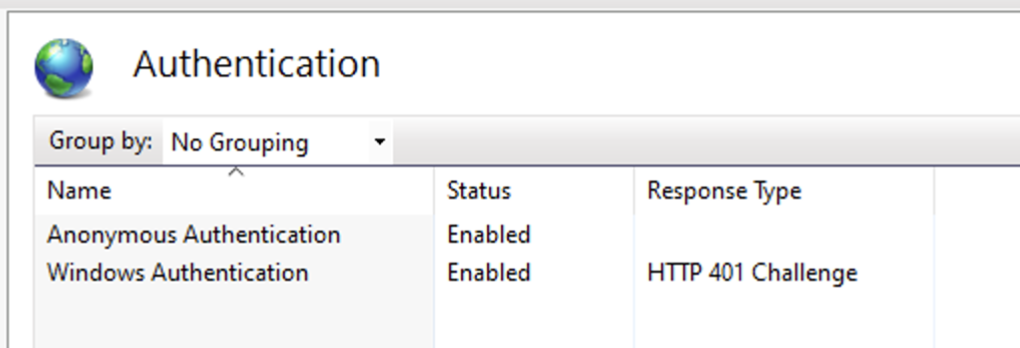
WCA v2.x and later requires Anonymous Authentication to be enabled for the
/status health endpoint.Configure Windows Authentication providers
Under Windows Authentication > Providers, ensure NTLM is the only enabled provider.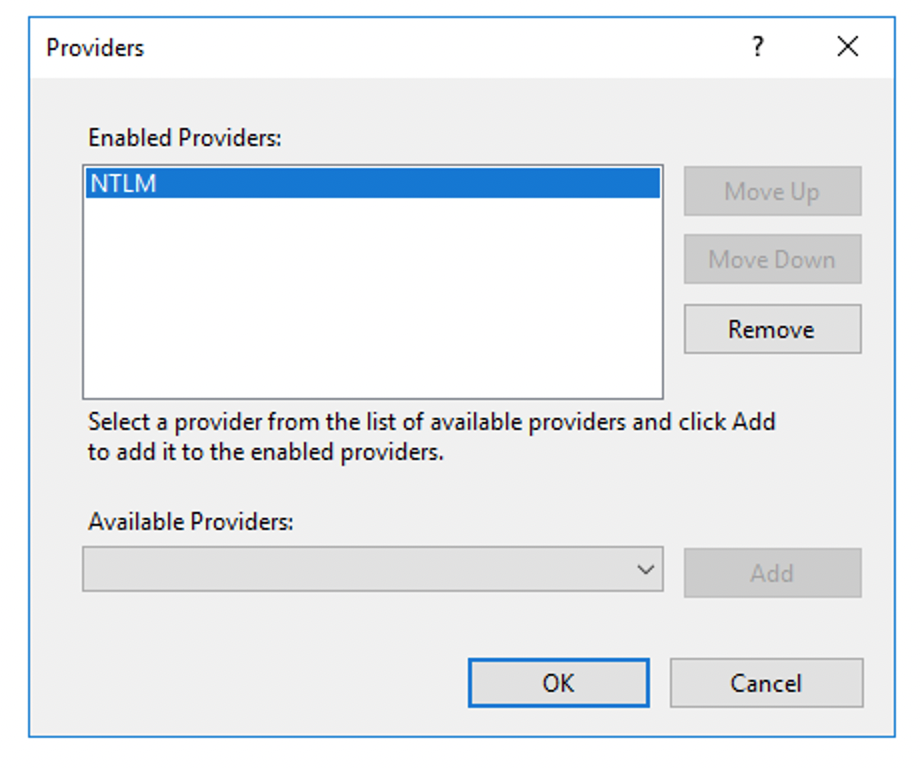
Upgrading from Previous Versions
When upgrading to WCA v2.x or later, Anonymous Authentication must be enabled in IIS. Previous versions of WCA had Anonymous Authentication disabled. This change is required for the/status health endpoint to function correctly.
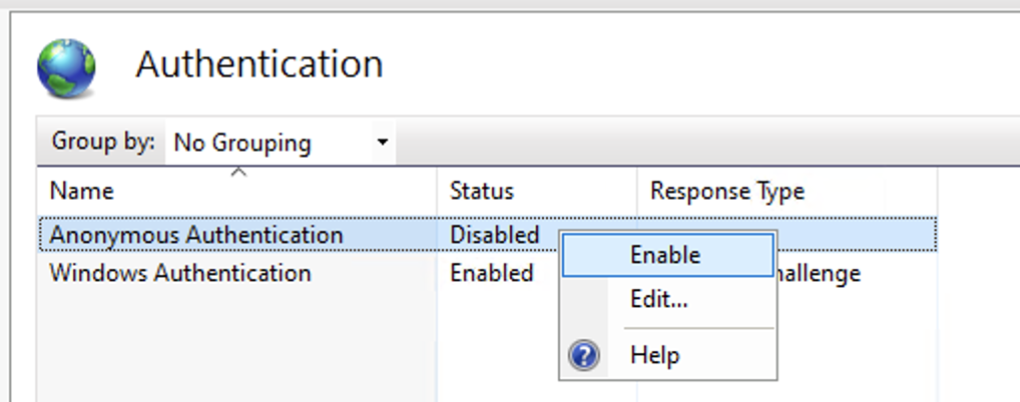
Status Endpoint
The WCA exposes a health endpoint at<hostname>/status that returns OK with HTTP 200 when the WCA application is running correctly. Use this endpoint for monitoring and health checks.
Configuration
- Console UI
- Configuration
In the Maverics Console, add a Windows Client Authenticator connector under Identity Fabric. Set the hostname URL to match your IIS site binding and optionally configure a TLS profile if the IIS server uses a self-signed or internal CA certificate.
Configuration with Maverics
After installing the WCA on your IIS server:- Set a friendly name — The
namefield is the unique identifier for this connector, referenced by app policies and attribute providers. - Set the URL — The
urlfield must match the hostname binding you configured in IIS (e.g.,https://wca.corp.example.com). - Optionally set TLS — If the IIS server uses a self-signed or internal CA certificate, reference a named TLS profile with the
tlsfield. The TLS profile should include the CA certificate viacaFile.
Configuration Reference
| Key | Type | Required | Description |
|---|---|---|---|
name | string | Yes | Unique connector identifier referenced by app policies and attribute providers |
type | string | Yes | Must be windowsclientauthenticator |
url | string | Yes | URL of the WCA hostname binding on the IIS server (e.g., https://wca.corp.example.com) |
tls | string | No | Named TLS profile for communication with the WCA — use when the IIS server has a self-signed or internal CA certificate |
Testing
To verify the WCA is working correctly:- Open a browser and navigate to the WCA URL (e.g.,
https://wca.corp.example.com). - Enter your Windows credentials when prompted.
- The landing page displays the authenticated username, confirming that NTLM authentication is functioning.
NTLM Seamless Authentication
By default, browsers prompt users for credentials when accessing the WCA. You can configure browsers to pass Windows credentials automatically for a seamless single sign-on experience.Edge and Chrome
Go to Internet Settings > Local Intranet > Advanced. Under “Add this website to the zone:”, add both the WCA site URL and the application URL.Firefox
- Navigate to
about:configin the Firefox address bar. - Add both the WCA site URL and the application URL (comma-separated) to:
network.automatic-ntlm-auth.trusted-urisnetwork.negotiate-auth.delegation-urisnetwork.negotiate-auth.trusted-uris
- Set
signon.autologin.proxytotrue.
High Availability
WCA requires a Layer 4 (network) load balancer for high availability. Do not use a Layer 7 (application) load balancer — Layer 7 load balancers terminate and re-establish TCP connections, which breaks the multi-step NTLM authentication handshake. Use source IP / destination IP / port tuple affinity (sticky sessions based on client IP) to ensure all packets in an NTLM handshake reach the same backend IIS server.Architecture
The high availability architecture follows this flow: Client Machines → App Load Balancer → Orchestrator(s) → Network Load Balancer (Layer 4) → IIS Server(s) with WCA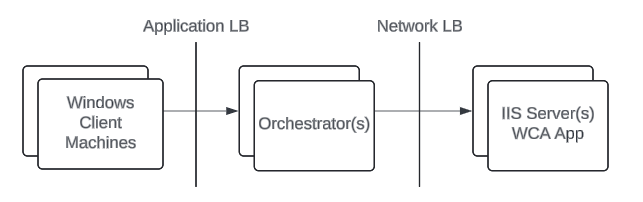
Troubleshooting
NTLM authentication fails through a load balancer
NTLM authentication fails through a load balancer
NTLM authentication requires an unbroken TCP connection across multiple request-response rounds. Layer 7 (application) load balancers terminate and re-establish connections, breaking the handshake.Fix: Replace the Layer 7 load balancer with a Layer 4 (network) load balancer. Configure source IP affinity to ensure all packets in a handshake reach the same backend server.
Status endpoint returns 401 or 403
Status endpoint returns 401 or 403
The
/status endpoint requires Anonymous Authentication to be enabled in IIS. This is a common issue when upgrading from WCA versions prior to v2.x.Fix: In IIS Manager, navigate to the WCA application’s Authentication settings and enable Anonymous Authentication.Browser prompts for credentials on intranet
Browser prompts for credentials on intranet
By default, browsers do not automatically send Windows credentials to intranet sites. Users will see a credential prompt on each access.Fix: Configure NTLM seamless authentication in the browser or via Group Policy. See the NTLM Seamless Authentication section above.
WCA installer fails
WCA installer fails
The WCA installer requires the .NET 7.0.13 Windows Server Hosting bundle. If the bundle is not present, the installer will install the bundle for you, but this may fail if there are network or permission issues.Fix: Manually download and install the .NET 7 Windows Server Hosting bundle before running the WCA installer.