

Console terminology: In the Maverics Console, this section is called
Identity Fabric. The YAML configuration uses the
connectors key to define
identity provider integrations.Overview
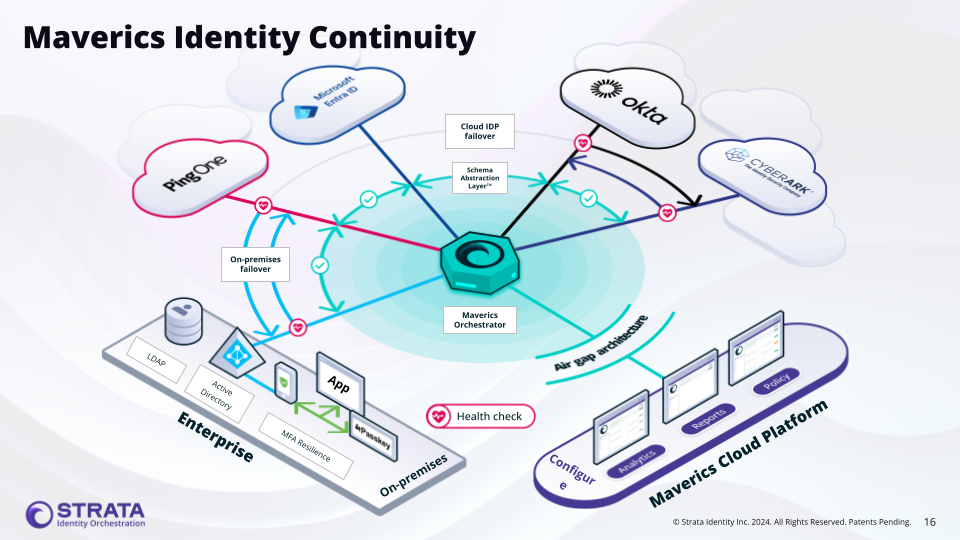
The Continuity connector (type: continuity) is unique among identity connectors because it doesn’t connect to a single identity provider. Instead, it orchestrates failover across multiple existing connectors. When the primary IdP is unavailable, the Orchestrator automatically routes authentication requests to the next connector in the ordered list. The connector also supports attribute normalization, mapping different attribute names across providers to a consistent set of names.
The Continuity connector uses the failover strategy with an ordered list of IdP connectors defined in failover.idps. The first connector in the list is the primary; subsequent connectors serve as fallbacks.
Identity Backup vs Identity Continuity
It is important to distinguish between Identity Backup and Identity Continuity:- Identity Backup preserves identity data (users, groups, policies) so it can be restored after an outage. It protects the data itself.
- Identity Continuity ensures that authentication and access remain uninterrupted during an IdP outage. It protects the user experience by routing requests to an alternate identity provider while the primary is down.
Use Cases
- Cloud IdP to on-premises failover — When a cloud identity provider (such as Okta or Entra ID) experiences an outage, automatically fail over to an on-premises IdP like ADFS or Active Directory to maintain uninterrupted access.
- Cloud IdP to cloud IdP failover — Maintain high availability by failing over between two cloud identity providers (e.g., Okta primary with Entra ID backup).
- Zero-downtime IdP migration — Gradually shift authentication from one identity provider to another without service interruption. Set the new IdP as primary and the old IdP as fallback during the transition period.
- Gradual cutover between identity providers — Migrate users from a legacy IdP to a modern one while maintaining fallback during the transition.
Supported Identity Services
Not all identity services support the health monitoring required for Continuity failover. The following table lists which services are supported:| Supported | Not Supported |
|---|---|
| ADFS SAML | 1Kosmos |
| Amazon Cognito | HYPR |
| Auth0 | Windows Client Authenticator |
| CyberArk | WSO2 |
| Duo | |
| Entra ID | |
| Generic OIDC | |
| Generic SAML | |
| Keycloak | |
| Okta | |
| Oracle Identity Cloud Service | |
| Ping Federate | |
| Trusona |
Unsupported services lack a reliable health check endpoint. If your identity provider is not listed as supported, contact Strata support to discuss options.
Configuration
- Console UI
- Configuration
To create a Continuity Strategy in the Maverics Console: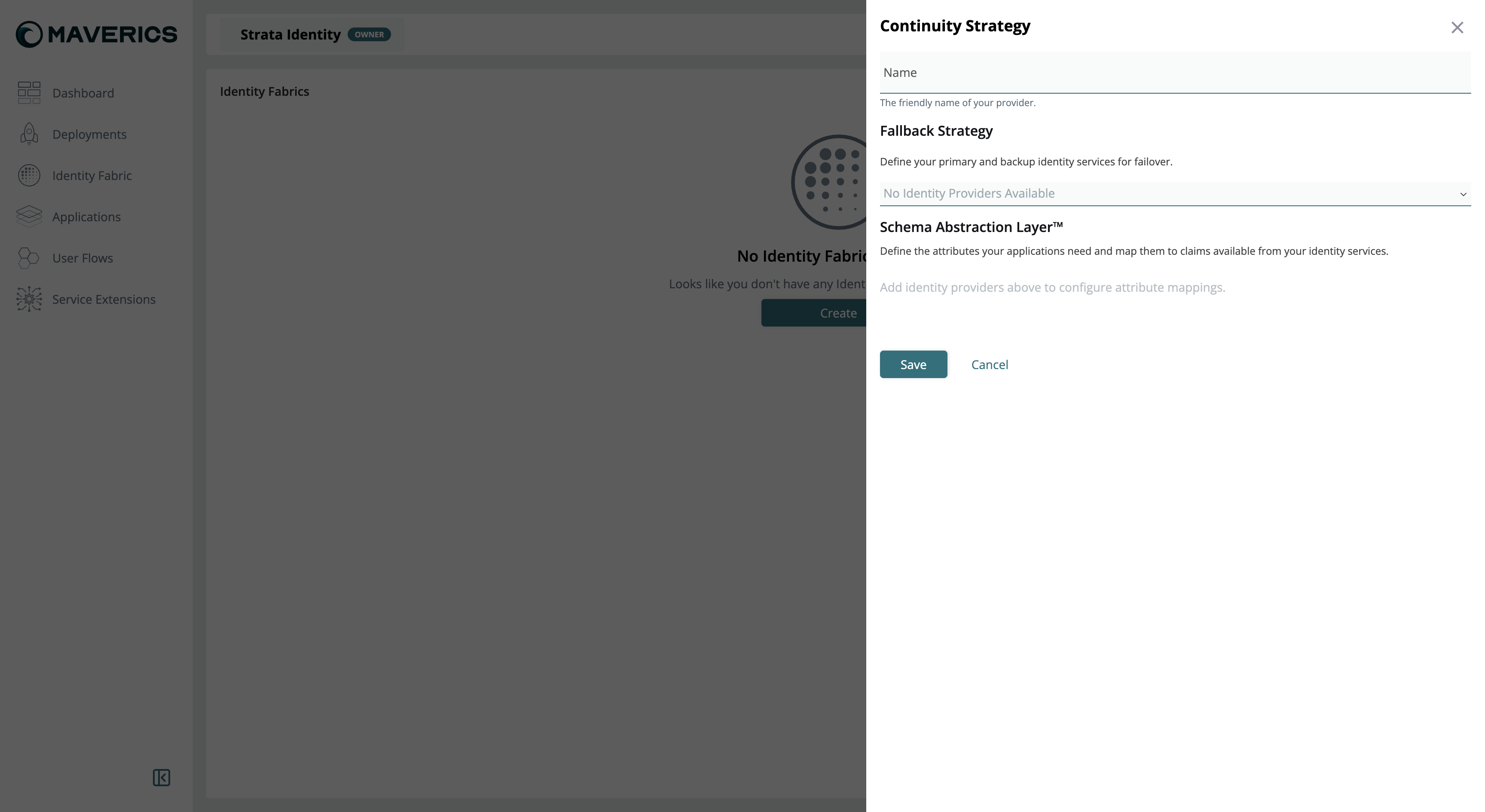
- Navigate to Identity Fabric in the Console sidebar.
- Click Create and select Continuity Strategy.
- Enter a Name for the strategy — this is the friendly name that identifies your failover configuration.
- In the Fallback Strategy section, add identity providers in priority order. The first provider is the primary; subsequent providers serve as backups that are used when providers above them are unavailable.
- In the Schema Abstraction Layer section, define attribute mappings. For each attribute your applications need, map it to the corresponding claim name in each identity provider (see Schema Abstraction Layer below).
- Click Save.
Deploying a Continuity Strategy to production requires a license. Contact [email protected] for licensing.
Configuration Reference
| Key | Type | Required | Description |
|---|---|---|---|
name | string | Yes | Unique connector identifier referenced by app policies |
type | string | Yes | Must be continuity |
strategy | string | Yes | Failover strategy — currently only failover is supported |
failover.idps | string[] | Yes | Ordered list of connector names to try. The first entry is the primary; subsequent entries are fallbacks tried in order. |
attributes | object[] | No | Attribute normalization rules across identity providers |
attributes[].name | string | Yes | Normalized attribute name used by the Orchestrator |
attributes[].mapping | map | Yes | Map of connector name to that connector’s attribute name (e.g., primary-idp: "primary_email") |
attributes[].default | string | No | Default value if the attribute is unavailable from any IdP |
The connectors listed in
failover.idps must be separately defined in the connectors section. The Continuity connector does not create them — it orchestrates failover between existing connectors. Each referenced connector (e.g., an OIDC or SAML connector) must have its own complete configuration.How Failover Works
- The Orchestrator performs configurable health checks on each connector listed in
failover.idps. Health checks run at the interval specified on each individual connector’shealthCheckconfiguration. - When an authentication request arrives, the Orchestrator routes it to the first healthy connector in the ordered list.
- If the primary connector’s health check is failing, the Orchestrator skips it and routes to the next healthy connector in the list. This is proactive, health-check-driven routing — not trial-and-error login attempts.
- The
attributessection normalizes attribute names across providers, so downstream applications see consistent attribute names regardless of which IdP handled the authentication.
Health Monitoring
Identity Service Health Monitoring must be enabled on each individual IdP connector used in the Continuity strategy — not on the Continuity connector itself. The Continuity connector reads the health status of its referenced connectors to make routing decisions.Health Check Configuration
Add ahealthCheck block to each connector referenced in failover.idps:
maverics.yaml
Health Check Fields
| Key | Type | Default | Description |
|---|---|---|---|
healthCheck.enabled | boolean | false | Enable or disable health monitoring for this connector |
healthCheck.interval | string | "30s" | Polling frequency (e.g., "10s", "1m", "30s") |
healthCheck.timeout | string | "10s" | Maximum wait time for a health check response before considering it failed |
healthCheck.unhealthyThreshold | integer | 3 | Number of consecutive health check failures before marking the connector as unhealthy and triggering failover |
healthCheck.healthyThreshold | integer | 2 | Number of consecutive health check successes before marking a previously-unhealthy connector as healthy again (fallback) |
Custom Health Check Fields
For providers that require non-standard health check endpoints or validation, use these additional fields:| Key | Type | Description |
|---|---|---|
healthCheck.customEndpoint | string | Custom URL to check instead of the default well-known endpoint |
healthCheck.expectedStatusCodes | integer[] | HTTP status codes considered healthy (e.g., [200, 204]). Defaults to 200. |
healthCheck.responseBodyMatcher | string | Expected value in the response body — the response must contain this string to be considered healthy |
healthCheck.headers | map | Additional HTTP headers to include in the health check request |
healthCheck.skipTLSVerification | boolean | Skip TLS certificate validation for the health check endpoint. Not recommended for production. |
healthCheck.caPath | string | Path to a CA certificate file for validating self-signed certificates on the health check endpoint |
How Health Checks Work by Protocol
- OIDC-based services (Okta, Entra ID, Auth0, Keycloak, Generic OIDC): Health checks call the well-known discovery endpoint (e.g.,
/.well-known/openid-configuration). If the endpoint is unreachable or returns an error, the connector is marked unhealthy. - SAML-based services (ADFS SAML, Generic SAML, Ping Federate): Health checks call the IdP’s metadata endpoint.
- LDAP/AD services (Active Directory, LDAP): Health checks attempt a connection to the server URL and perform a bind operation.
Schema Abstraction Layer
The Schema Abstraction Layer creates a mapping between the attributes your applications require and the claims available from each identity service. Different identity providers often use different attribute names for the same data — for example, Okta might useemail while Entra ID uses preferred_username, and an LDAP directory might use mail.
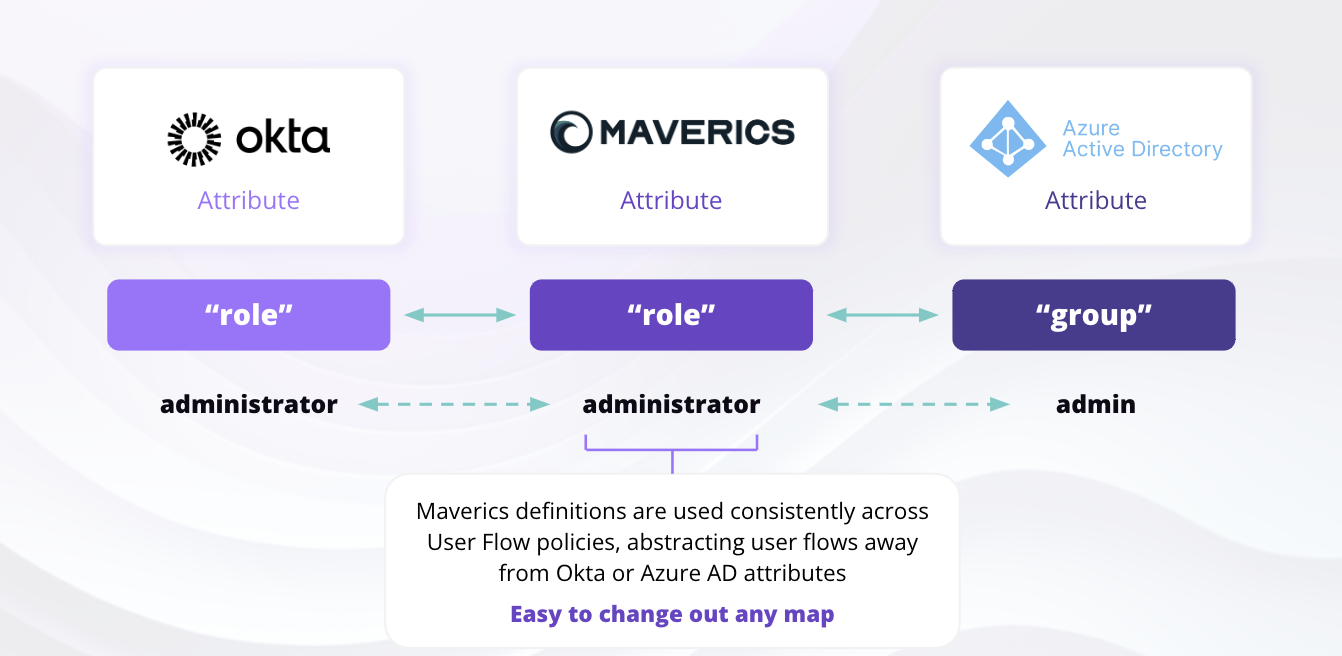
attributes section of the Continuity connector:
maverics.yaml
attributes defines:
name— The normalized attribute name that your applications will receive.mapping— A map from connector name to the claim name used by that provider.default— An optional fallback value if the attribute is unavailable from the authenticating IdP.

Troubleshooting
Ensure all referenced connectors are defined
Ensure all referenced connectors are defined
Every connector name in
failover.idps must have a corresponding entry in the connectors section. Missing connectors will cause configuration validation errors at startup.Fix: Check that each name listed in failover.idps exactly matches a connector name defined elsewhere in the configuration.Attribute normalization mapping issues
Attribute normalization mapping issues
If different IdPs use different attribute names for the same data (e.g.,
email vs mail), applications may receive inconsistent attribute names depending on which IdP authenticated the user.Fix: Use the attributes section to map provider-specific claim names to a single normalized name. Ensure every connector in failover.idps has an entry in each attribute’s mapping.Connector health checks not working
Connector health checks not working
If health checks are not enabled on the individual connectors referenced by the Continuity connector, the Orchestrator cannot proactively detect unavailable IdPs. It will instead rely on authentication failure, which degrades the user experience.Fix: Add
healthCheck.enabled: true on each connector listed in failover.idps. Set appropriate interval, timeout, and unhealthyThreshold values.Health check fails with 'well-known metadata unavailable'
Health check fails with 'well-known metadata unavailable'
Failover order is wrong
Failover order is wrong
The connector listed first in
failover.idps is always tried first when healthy. If your preferred IdP is not receiving traffic, check the ordering.Fix: Place the most reliable or preferred IdP first in the failover.idps list. Subsequent connectors are only used when all preceding connectors are unhealthy.Related Pages
Set Up Identity Continuity
Step-by-step guide to configuring Continuity with Console UI and YAML
Identity Fabric
Overview of all identity providers and supported types
Identity Fabric
Complete field reference for all connector types
Custom OIDC
Generic OIDC connector — commonly used as a failover target
Custom SAML
Generic SAML connector — commonly used as a failover target