The Windows Client Authenticator (WCA) allows Windows and IIS users to validate their identity to the Maverics Orchestrator using Windows desktop credentials. WCA runs as an IIS application that authenticates users via NTLM and communicates the result to the Orchestrator over HTTPS. WCA must be used with the Orchestrator — it has no standalone value. The WCA installer is downloaded from your Maverics deployment.
Console terminology: In the Maverics Console, this section is called
Identity Fabric. The YAML configuration uses the connectors key to define
identity provider integrations.
The Windows Client Authenticator connector authenticates users via their Windows desktop credentials using NTLM. Unlike OIDC or SAML connectors, WCA does not use a standard federation protocol — it runs as a dedicated IIS application on a Windows server and communicates directly with the Orchestrator over HTTPS.WCA only supports login functionality. It does not retrieve user attributes beyond the authenticated username. For additional attributes such as email, display name, or group memberships, pair the WCA connector with an Attribute Provider such as Active Directory.
Unified SSO for Windows desktop environments — Extend single sign-on to web applications using existing Windows domain credentials via NTLM, so users on domain-joined machines authenticate seamlessly without additional passwords
Legacy Windows app modernization — Bridge NTLM-authenticated Windows environments with modern cloud IdPs through the Orchestrator, enabling a unified authentication experience across on-premises and cloud applications
Seamless Kerberos/NTLM-to-web SSO — Authenticate users with their Windows desktop session and pass identity to the Orchestrator, eliminating separate login prompts for web applications in enterprise Windows environments
Attribute-enriched Windows authentication — Pair WCA with an Active Directory attribute provider to retrieve group memberships, email, and other directory attributes alongside NTLM authentication
Follow these steps to install and configure the WCA on your IIS server:
1
Run the WCA installer
Run the WCA installer downloaded from your Maverics deployment. The installer creates an IIS application for the WCA.
2
Open IIS Manager
Open IIS Manager and navigate to the WCA application.
3
Configure authentication settings
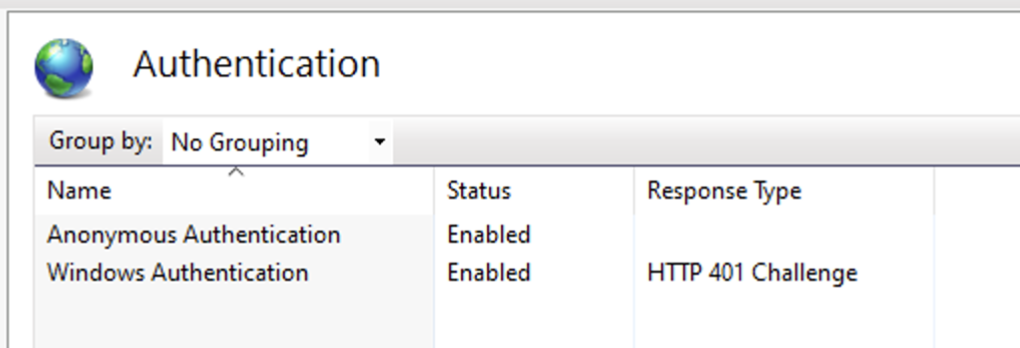
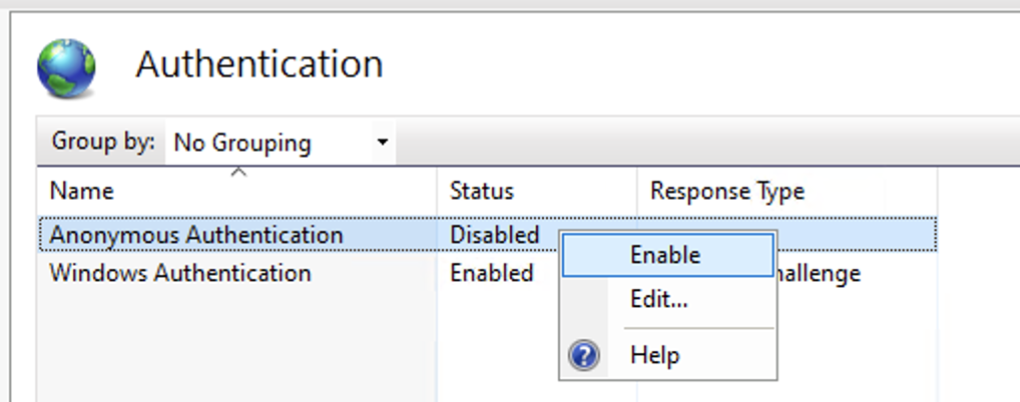
Under the WCA application’s Authentication settings, enable both Anonymous Authentication and Windows Authentication.
IIS Authentication settings for WCA
WCA v2.x and later requires Anonymous Authentication to be enabled for the /status health endpoint.
4
Configure Windows Authentication providers
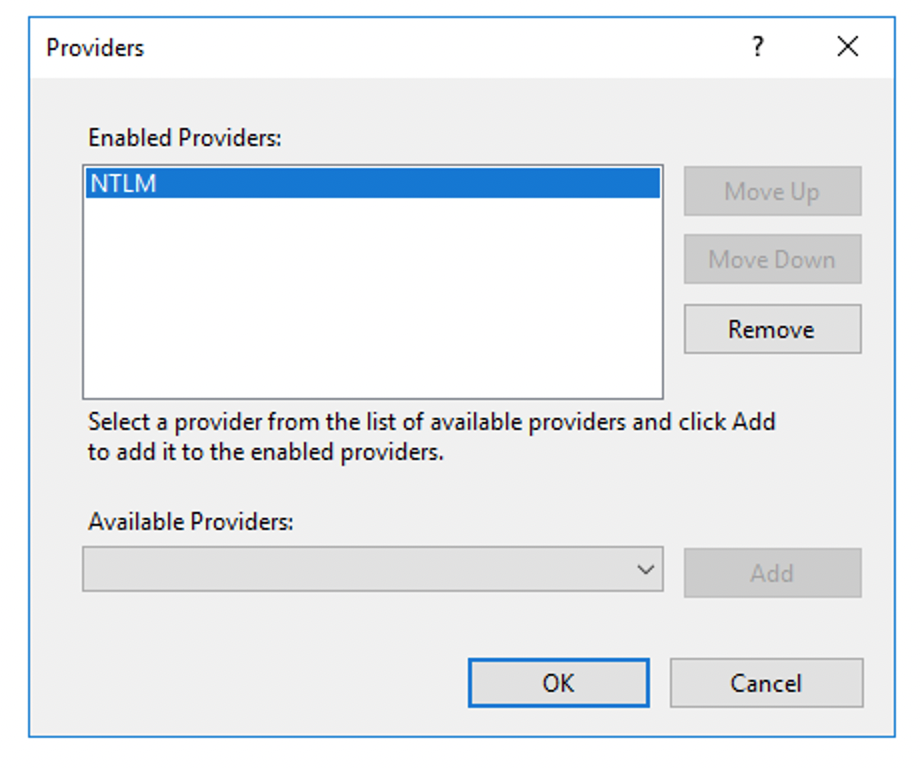
Under Windows Authentication > Providers, ensure NTLM is the only enabled provider.
NTLM as the only enabled provider
5
Configure site bindings
Configure the IIS site bindings with HTTPS and the appropriate hostname for your environment. This hostname is the URL you will use in the Orchestrator connector configuration.
When upgrading to WCA v2.x or later, Anonymous Authentication must be enabled in IIS. Previous versions of WCA had Anonymous Authentication disabled. This change is required for the /status health endpoint to function correctly.
The WCA exposes a health endpoint at <hostname>/status that returns OK with HTTP 200 when the WCA application is running correctly. Use this endpoint for monitoring and health checks.
Set a friendly name — The name field is the unique identifier for this connector, referenced by app policies and attribute providers.
Set the URL — The url field must match the hostname binding you configured in IIS (e.g., https://wca.corp.example.com).
Optionally set TLS — If the IIS server uses a self-signed or internal CA certificate, reference a named TLS profile with the tls field. The TLS profile should include the CA certificate via caFile.
By default, browsers prompt users for credentials when accessing the WCA. You can configure browsers to pass Windows credentials automatically for a seamless single sign-on experience.
WCA requires a Layer 4 (network) load balancer for high availability. Do not use a Layer 7 (application) load balancer — Layer 7 load balancers terminate and re-establish TCP connections, which breaks the multi-step NTLM authentication handshake.Use source IP / destination IP / port tuple affinity (sticky sessions based on client IP) to ensure all packets in an NTLM handshake reach the same backend IIS server.
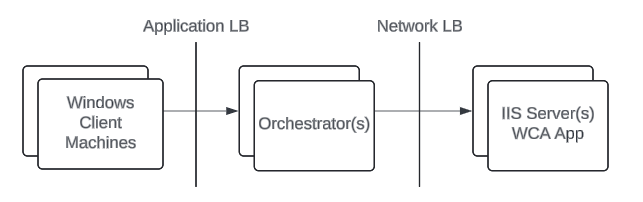
The high availability architecture follows this flow:Client Machines → App Load Balancer → Orchestrator(s) → Network Load Balancer (Layer 4) → IIS Server(s) with WCA
WCA high availability architecture
Using a Layer 7 load balancer in front of WCA servers will cause NTLM authentication failures. NTLM requires an unbroken TCP connection between the client (Orchestrator) and the server (WCA on IIS) across multiple request-response rounds. Layer 7 load balancers proxy at the HTTP level, breaking this connection continuity.
NTLM authentication requires an unbroken TCP connection across multiple request-response rounds. Layer 7 (application) load balancers terminate and re-establish connections, breaking the handshake.Fix: Replace the Layer 7 load balancer with a Layer 4 (network) load balancer. Configure source IP affinity to ensure all packets in a handshake reach the same backend server.
Status endpoint returns 401 or 403
The /status endpoint requires Anonymous Authentication to be enabled in IIS. This is a common issue when upgrading from WCA versions prior to v2.x.Fix: In IIS Manager, navigate to the WCA application’s Authentication settings and enable Anonymous Authentication.
Browser prompts for credentials on intranet
By default, browsers do not automatically send Windows credentials to intranet sites. Users will see a credential prompt on each access.Fix: Configure NTLM seamless authentication in the browser or via Group Policy. See the NTLM Seamless Authentication section above.
WCA installer fails
The WCA installer requires the .NET 7.0.13 Windows Server Hosting bundle. If the bundle is not present, the installer will install the bundle for you, but this may fail if there are network or permission issues.Fix: Manually download and install the .NET 7 Windows Server Hosting bundle before running the WCA installer.